
Open the Voice settings
Last updated: 27 October 2026 · 4 min read
A Calls (Clomni Voice) inbox is set up partly in Clomni and partly in the Voice panel. The voice menu (IVR), working hours, departments, call flows and desk phones live in the Voice panel. Only an administrator can open it, and no separate password is needed. The Voice panel is in Azerbaijani only, so its names are given here in Azerbaijani with a translation.
Steps
-
1
Open the inbox's Operator line tab
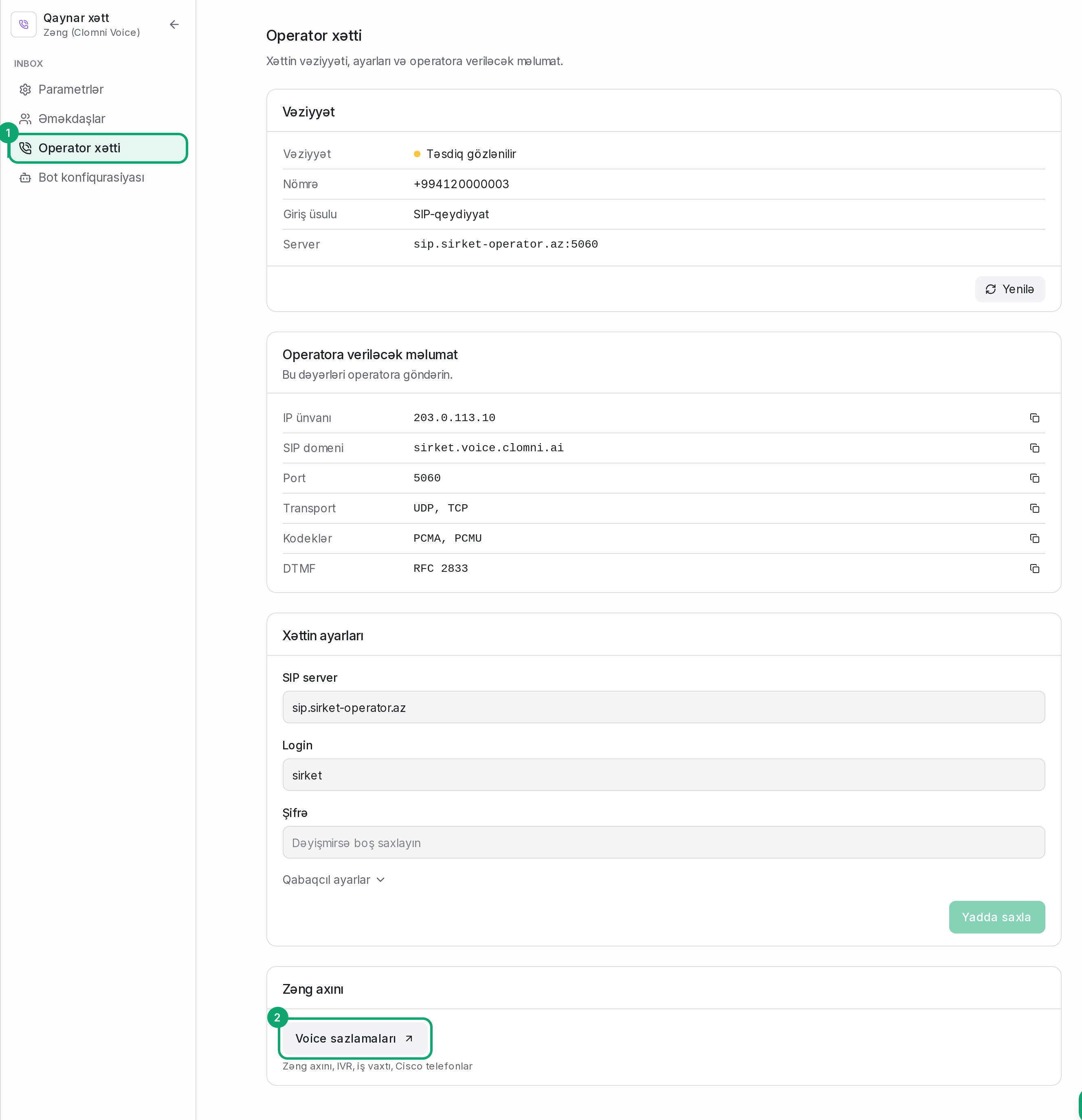
On Settings › Workspace settings › Inboxes, pick the call inbox and open the “Operator line” tab. At the bottom, in the “Call flow” card, click “Voice settings”. Only administrators see this button.
-
2
The panel opens in a new tab
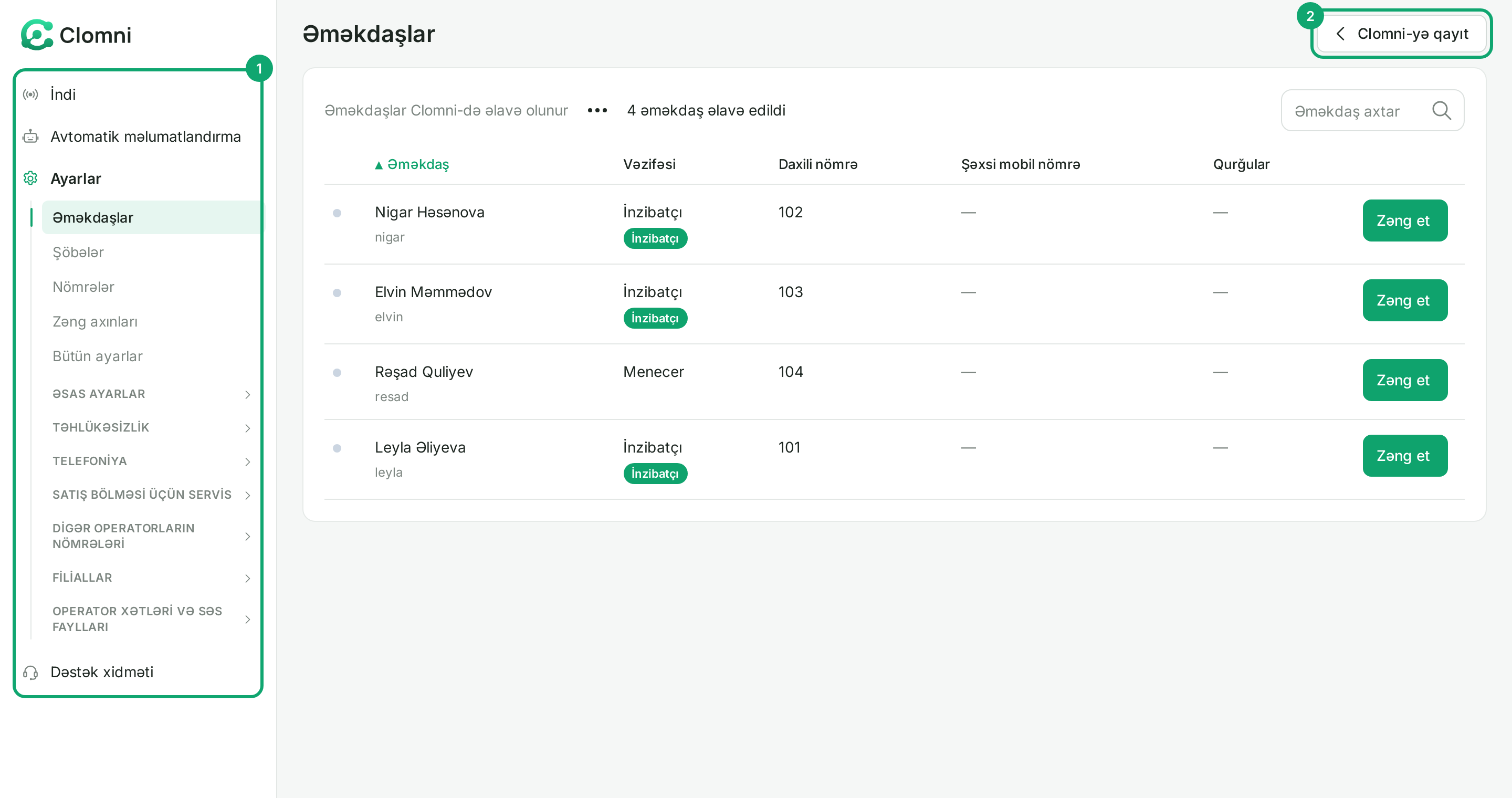
The Voice panel opens in a new browser tab and signs you in with your Clomni account. The menu on the left has “İndi” (Now), “Avtomatik məlumatlandırma” (Automatic notifications), “Ayarlar” (Settings) and “Dəstək xidməti” (Support). Most of the work is under “Ayarlar”: “Əməkdaşlar” (Employees), “Şöbələr” (Departments), “Nömrələr” (Numbers), “Zəng axınları” (Call flows) and “Bütün ayarlar” (All settings). To go back, click “Clomni-yə qayıt” (Back to Clomni) at the top right.
-
3
What is in Voice and what is in Clomni
Set up in the Voice panel:
- the voice menu (IVR) and greeting;
- working hours, after-hours and holidays;
- departments: who is rung, and in what order;
- call flows;
- the SIP password for desk phones (Cisco and other IP phones);
- audio files, melodies, voicemail, blacklist, call recording.
Kept in Clomni: the call itself and its history, contacts, reports, adding and removing agents, an agent's name, email, role and extension, the number and the operator line. These sections do not appear in the Voice panel.
-
4
If the panel asks you to sign in
The Voice panel does not open with a password. If it says “Clomni hesabınızdan daxil olun” (Sign in with your Clomni account) or the session has ended, go back to Clomni and click “Voice settings” again. Each click makes a new sign-in link, which works for one minute and opens once.