
Answer a Clomni Voice call in the browser
Last updated: 27 October 2026 · 8 min read
When a call comes to a Voice inbox's number, it rings in the browsers of that inbox's agents. You need no separate phone or app: the browser works as the phone. A customer's call rings only that inbox's agents, and how it rings depends on the inbox's “Call distribution”.
Steps
-
1
Be “Online”
Calls ring only while your status is “Online”. When you are “Busy”, customer calls do not ring for you, but you can still place calls yourself. When you are “Offline”, the phone in your browser is switched off. If you go “Offline” during a call, the call is not cut: the phone switches off after it ends. Change your status by clicking your profile picture at the bottom of the left menu.
-
2
Allow the microphone
The first time you answer, the browser asks for the microphone: allow it. A headset works best. If no microphone is found or it is not allowed, the call keeps ringing: allow it and click “Answer” again, or a colleague takes the call.
-
3
The call card
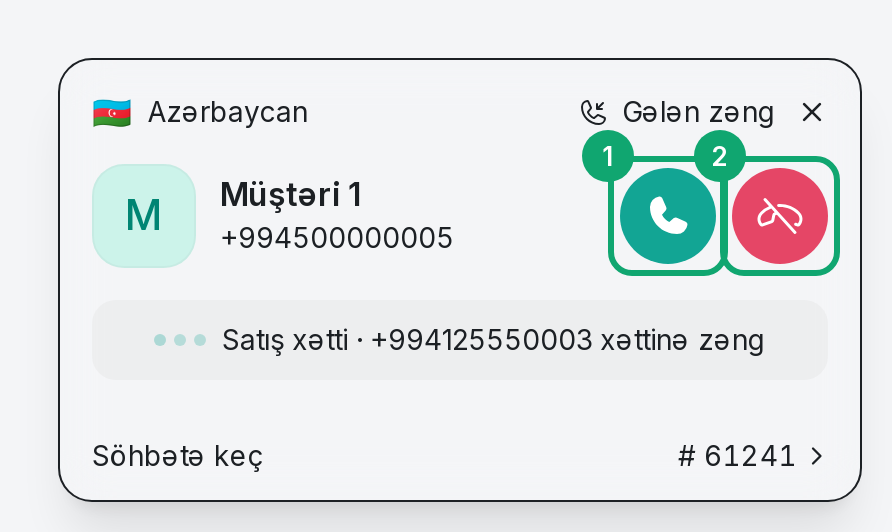
When a call comes in, a card opens at the bottom right and a ringtone plays. The card shows the caller's country, name and number. Below, it says which of your numbers was called, for example “Calling Sales line · +994125550000”. The buttons:
- The green button (“Answer”) takes the call.
- The red button (“Reject”) stops the call for you, and it moves to the next agent or the next step of the call flow.
- The ✕ at the top (“Dismiss”) only hides the card. It does not reject the call.
“Go to conversation thread” at the bottom of the card opens the customer's conversation.
-
4
During the call
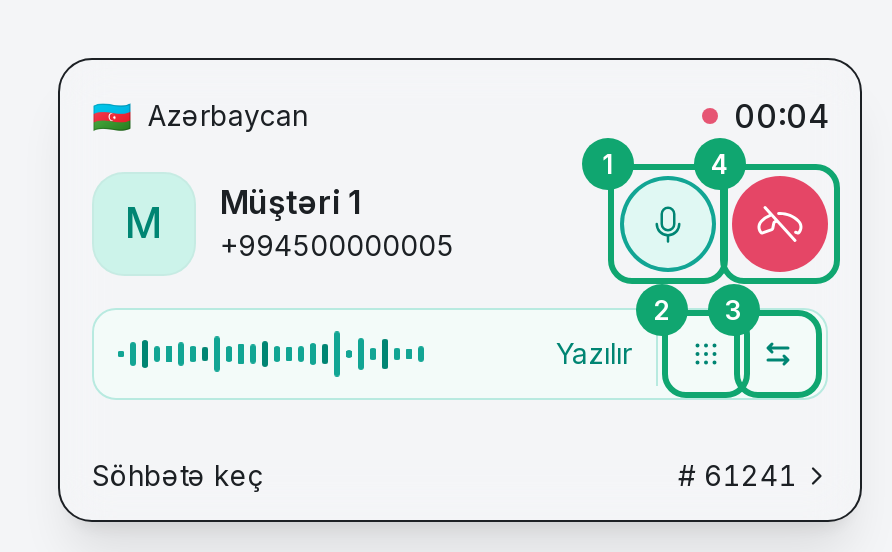
The card shows how long the call has lasted and “Recording”: Voice calls are recorded. The buttons:
- The microphone button (“Mute mic” / “Unmute mic”): the customer can't hear you, and the card says “Microphone off”.
- “Keypad”: sends digits, for example to choose an option in a voice menu on the other side. The 0 to 9, * and # keys on your keyboard work too.
- “Transfer call”: hands the call to a colleague (see below).
- The red button (“End call”) ends the call.
-
5
Transfer the call to a colleague
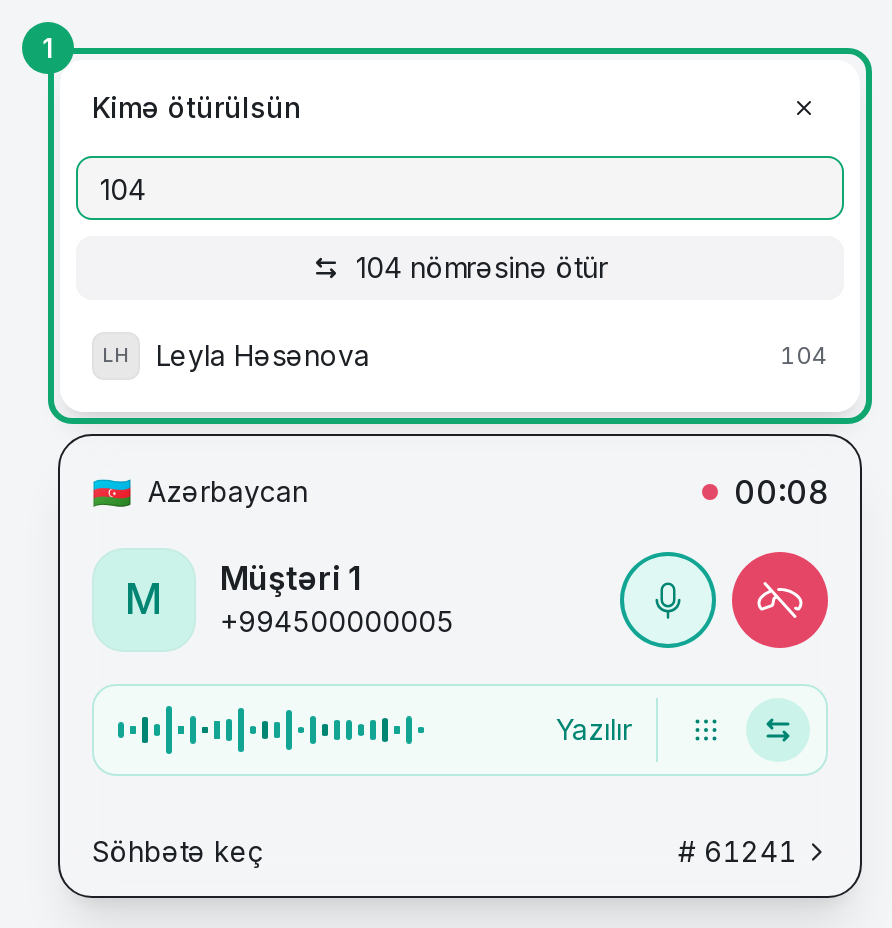
Click “Transfer call”. The “Transfer to” list shows this line's agents with their extensions. Pick a name, or type an extension into “Name or extension” and click “Transfer to {number}”. A department's extension works too. Calls can be transferred only to an extension, not to an outside number or to yourself. After the transfer, “Call transferred” appears and the call ends for you.
-
6
One call at a time
While you are on a call, a second call does not ring for you: Voice sends it to another agent or to the next step of the call flow. The same applies while you are on a call on another channel (for example, WhatsApp).
-
7
Several tabs open
If the panel is open in several tabs, the call rings in all of them and the tab you answer in takes it. Once a tab is closed, calls stop ringing there. After Clomni is updated, old open tabs may not ring: reload them.
-
8
What happens to the conversation
Every call is written into the customer's conversation as a message of its own: “Incoming call”, “Call in progress”, “Call ended” or “Missed call”. The conversation of a call you answered is assigned to you. The conversation of a missed call stays open so someone can call back. Calls from hidden numbers are all written to one contact for hidden numbers, with a name that says, in Azerbaijani, that the call came from a hidden number. In a call inbox's conversation you can't write to the customer, only a private note (see “Clomni Voice not working: line, call and microphone problems”).