
Working hours of a Voice number
Last updated: 27 October 2026 · 6 min read
Voice can send a call to one place in working hours and to another after hours. Set this up in the Voice panel, in the number's settings, under “İş rejimi” (Working mode).
Steps
-
1
Choose the By schedule mode
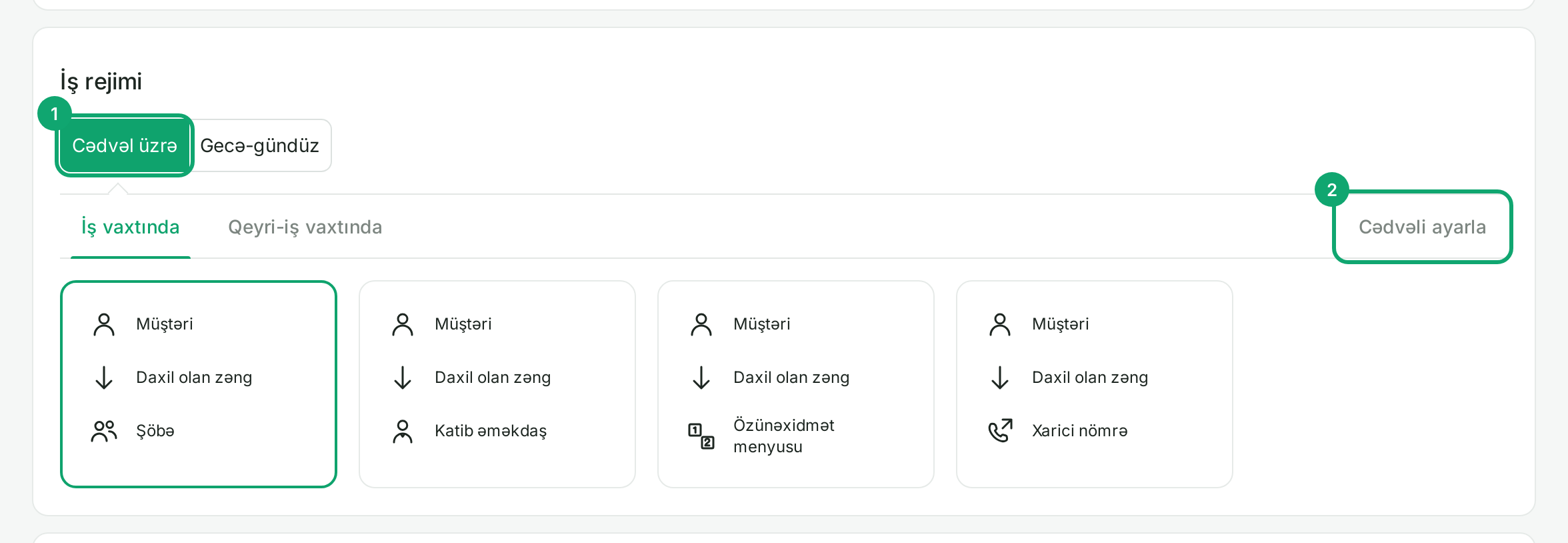
Open the number under “Ayarlar › Nömrələr” (Settings › Numbers). In “İş rejimi”, click “Cədvəl üzrə” (By schedule). Tabs appear below it: “İş vaxtında” (During working hours), “Qeyri-iş vaxtında” (After hours) and “Cədvəli ayarla” (Set up the schedule). With “Gecə-gündüz” (Around the clock), the number always goes to the same target.
-
2
Enter the working hours
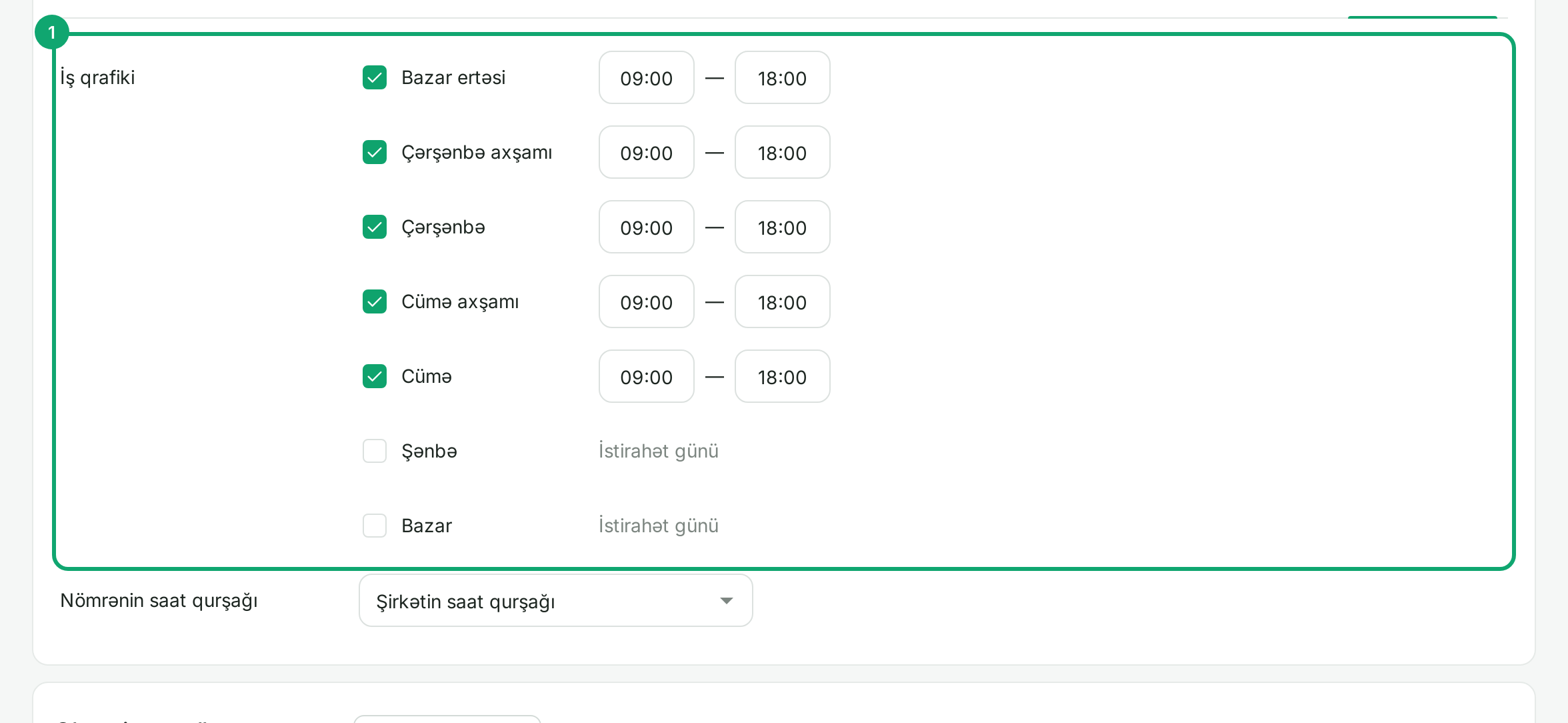
On the “Cədvəli ayarla” tab, tick the working days and enter the start and end time for each. A day that is not ticked counts as “İstirahət günü” (Day off). If “Nömrənin saat qurşağı” (The number's time zone) is left as it is, the company's time zone is used.
-
3
Choose a target for each time
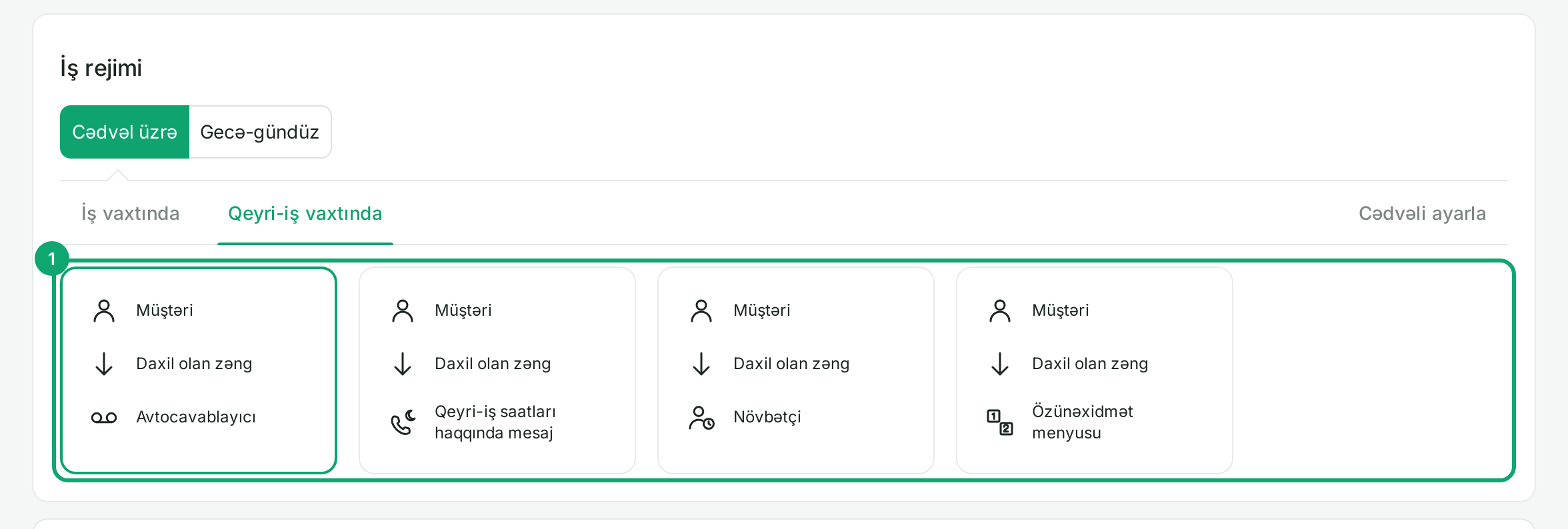
On the “İş vaxtında” tab, choose the target for working hours: “Şöbə” (Department), “Katib əməkdaş” (Secretary), “Özünəxidmət menyusu” (Self-service menu) or “Xarici nömrə” (External number). On the “Qeyri-iş vaxtında” tab:
- “Avtocavablayıcı” (Voicemail): the caller hears a message and can leave a voice message;
- “Qeyri-iş saatları haqqında mesaj” (After-hours message): a message plays and the call ends;
- “Növbətçi” (On duty): the call goes to the employee on duty, a department or an external number;
- “Özünəxidmət menyusu”: a separate voice menu for after hours.
-
4
Lunch break and on-duty hours
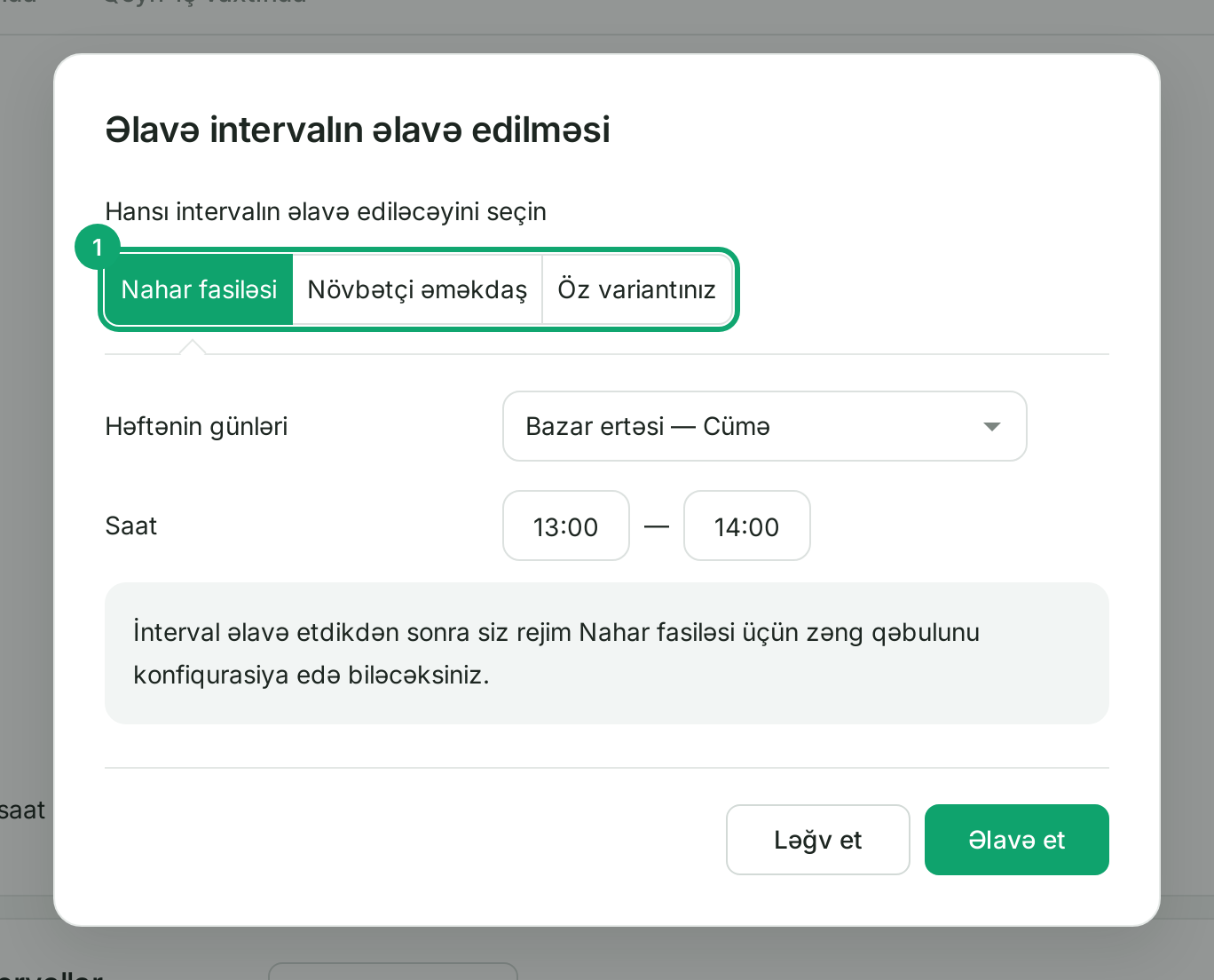
On the “Cədvəli ayarla” tab, under “Əlavə intervallar” (Extra intervals), click “İnterval əlavə et” (Add interval). Choose “Nahar fasiləsi” (Lunch break), “Növbətçi əməkdaş” (Employee on duty) or “Öz variantınız” (Your own), enter the days and time, and click “Əlavə et” (Add). The new interval appears above as a tab of its own: choose the target for those hours there.
-
5
Holidays and special days
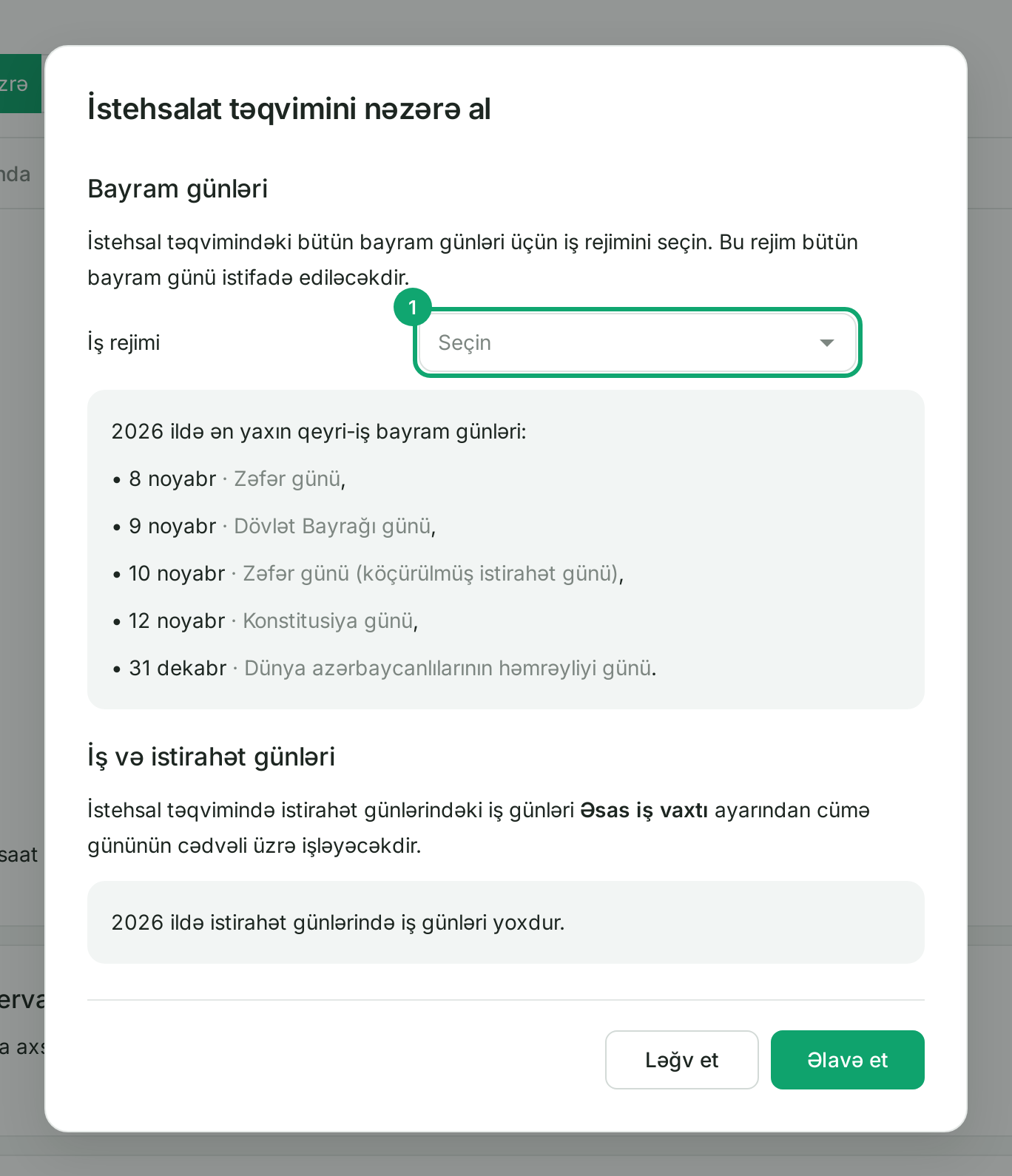
Under “Xüsusi günlər” (Special days), click “İstehsalat təqvimi” (Production calendar) and choose the working mode for public holidays, for example “Qeyri-iş vaxtında”. Azerbaijan's official holidays are already in the calendar. To mark a single day, click “Əlamətdar gün əlavə et” (Add special day) and choose the date, time and working mode.
-
6
Save
Click “Yaddaşda saxla” (Save) at the bottom of the page. The company-wide time zone is under “Ayarlar › Bütün ayarlar › Şirkətin saat qurşağı” (Settings › All settings › Company time zone). If the number is linked to a published call flow, these settings do not apply: set the hours in the flow's “İş vaxtı” (Working hours) step.