
Connect a phone number with Clomni Voice
Last updated: 27 October 2026 · 11 min read
Clomni Voice connects your company's phone number (your operator's SIP line) to Clomni. When a customer calls the number, the call rings in your agents' browsers, and every call is written into the customer's conversation as a message of its own. One number is one inbox: for a second number, create a second inbox. An administrator creates the inbox. When the account's first Voice inbox is created, the company's Voice account is opened too and every agent gets an extension (see “Extensions: call a colleague or a department”).
Steps
-
1
What you need
A SIP number from your operator. If the line uses SIP registration: the server, login and password your operator gave you. If the line works by IP: your operator's server address.
-
2
Open a new inbox
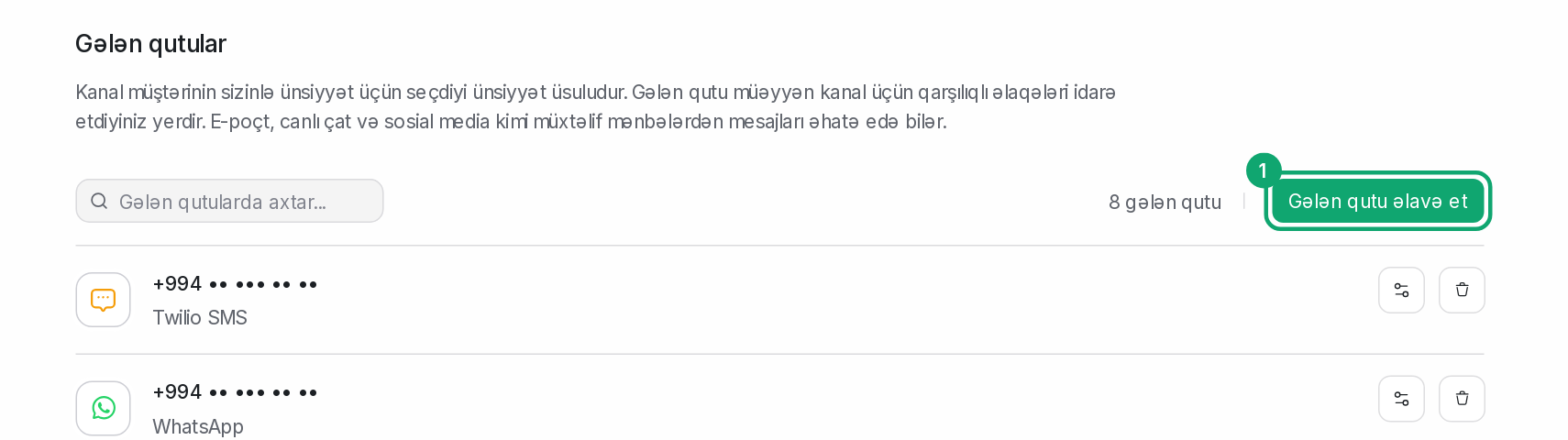
On Settings › Workspace settings › Inboxes, click “Add Inbox”.
-
3
Pick the “Calls (Clomni Voice)” card
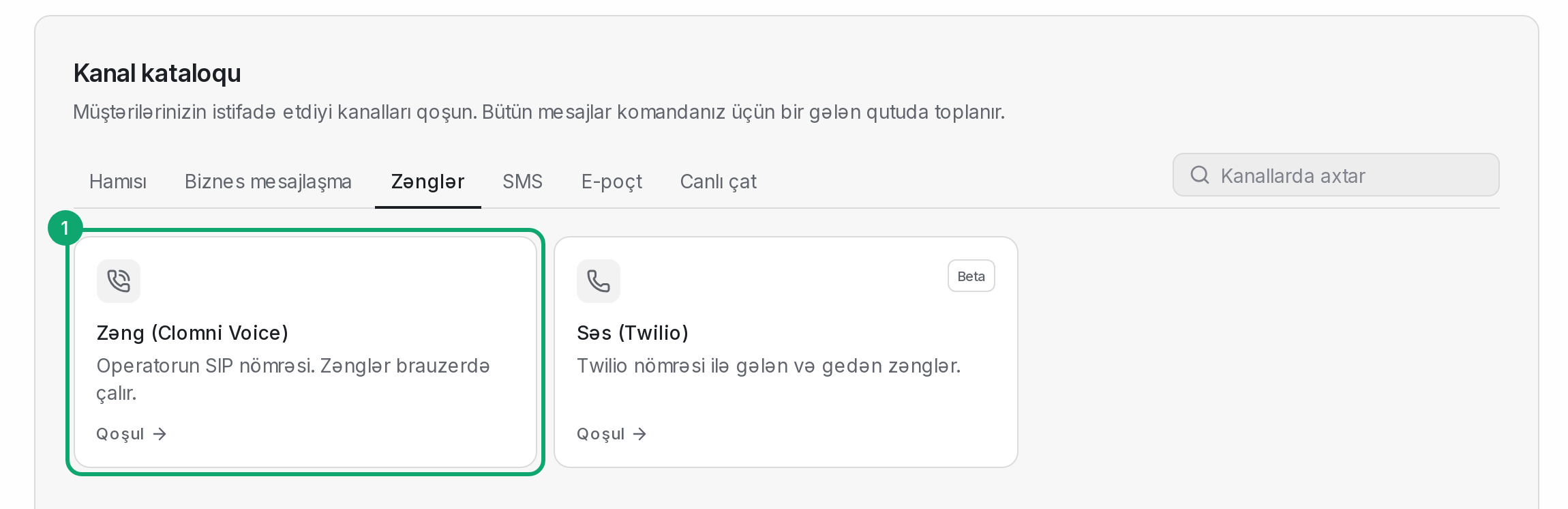
In the channel catalog, open “Calls” and click “Connect” on the “Calls (Clomni Voice)” card. On “Before you start”, check what you need and click “Ready, continue”. If the card is not there, Voice is not enabled for your account: contact the Clomni team.
-
4
Enter the number
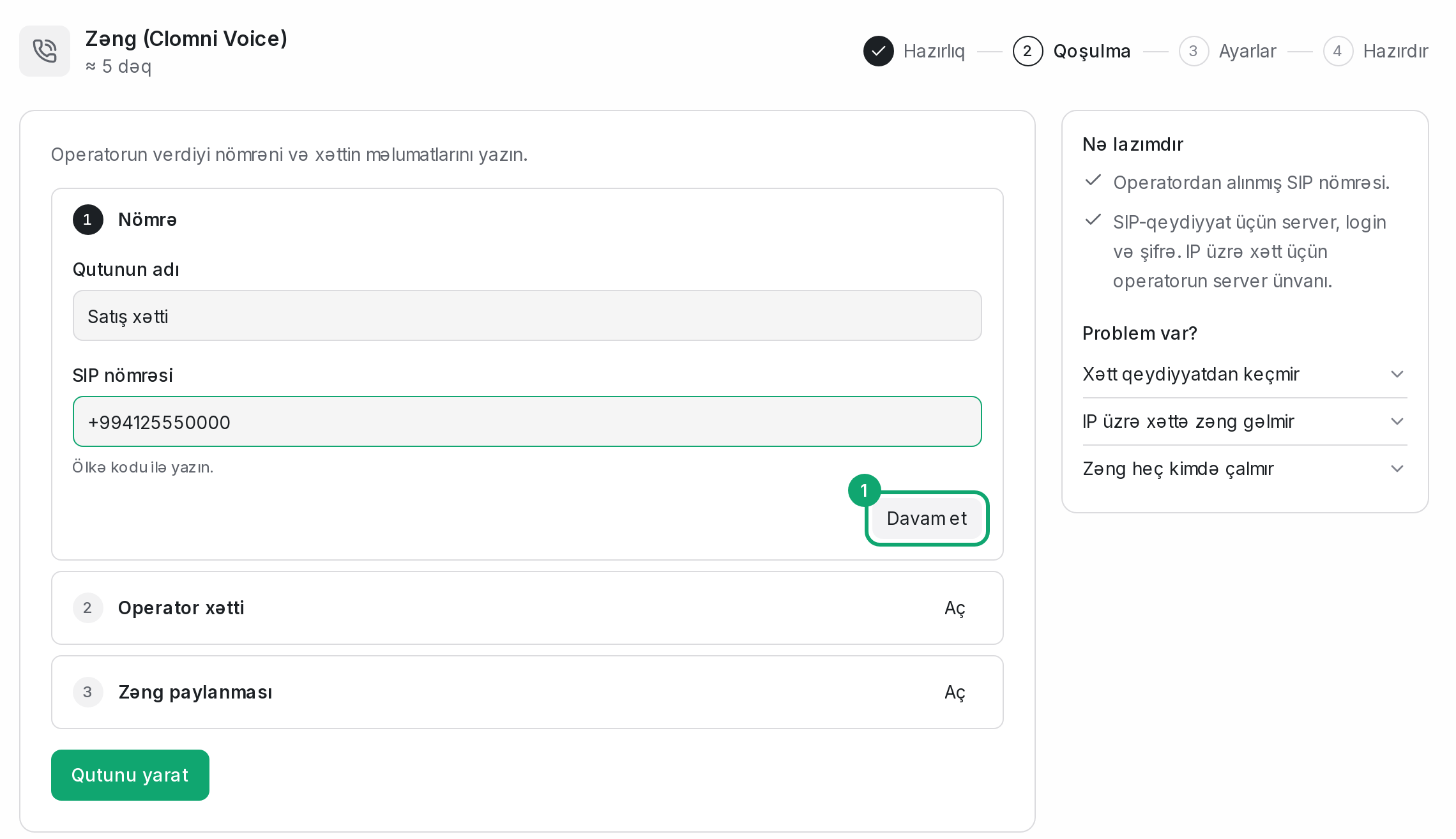
In the “Number” step, fill in “Inbox name” (for example, Sales line) and “SIP number”. Write the number with the country code, for example +994125550000. Then click “Continue”. A number can belong to only one inbox.
-
5
Enter the operator line
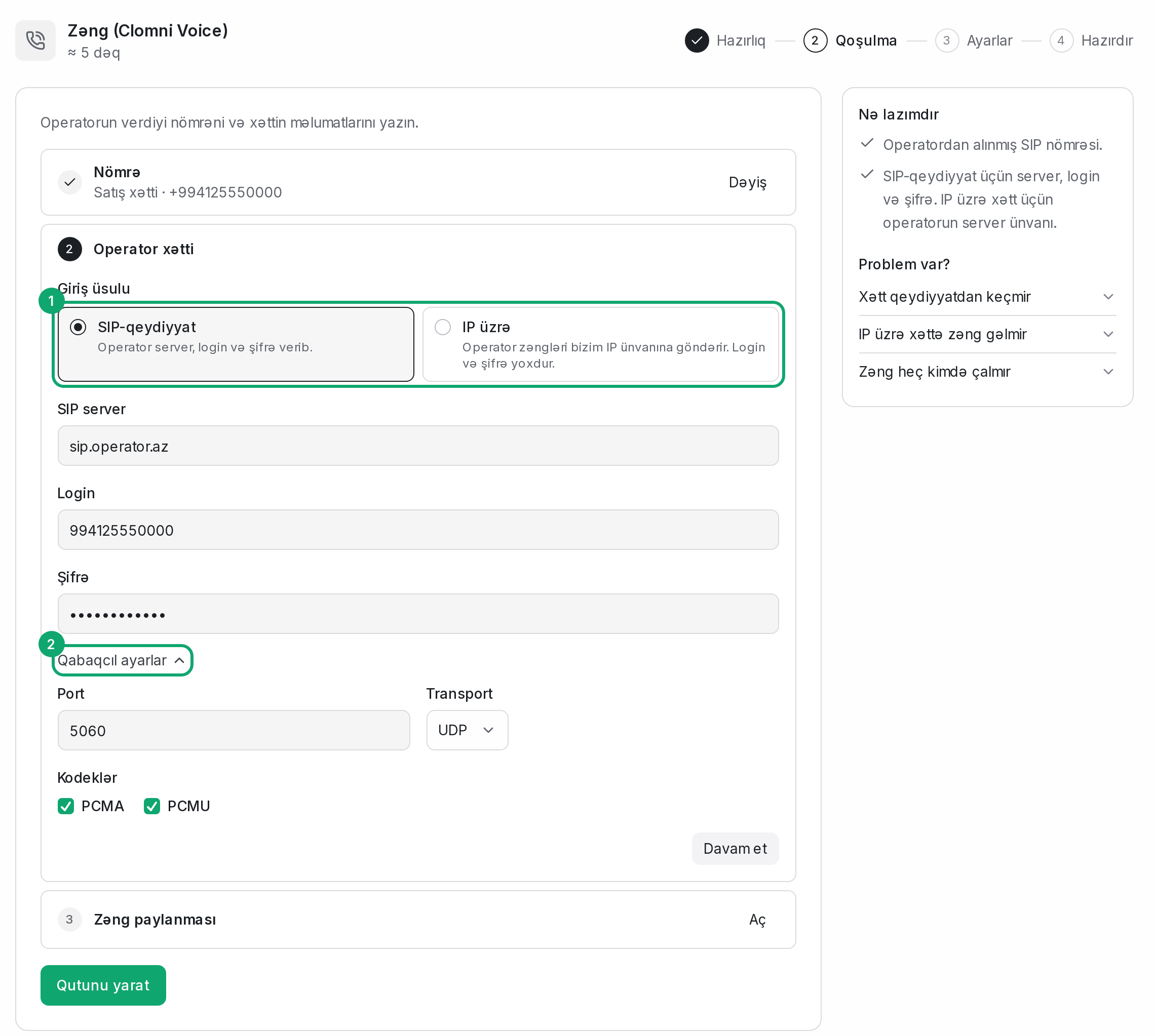
Choose the “Sign-in method”:
- “SIP registration”: your operator gave you a server, login and password. Fill in “SIP server”, “Login” and “Password”.
- “By IP”: your operator sends calls to our IP address, with no login or password. In “Operator's server address”, enter the address calls come from.
Enter the address without http or a port, for example sip.operator.az. “Advanced settings” holds “Port” (usually 5060), “Transport” (UDP or TCP) and “Codecs” (PCMA, PCMU). Leave them as they are unless your operator says otherwise. The sign-in method cannot be changed after the inbox is created. Then click “Continue”.
-
6
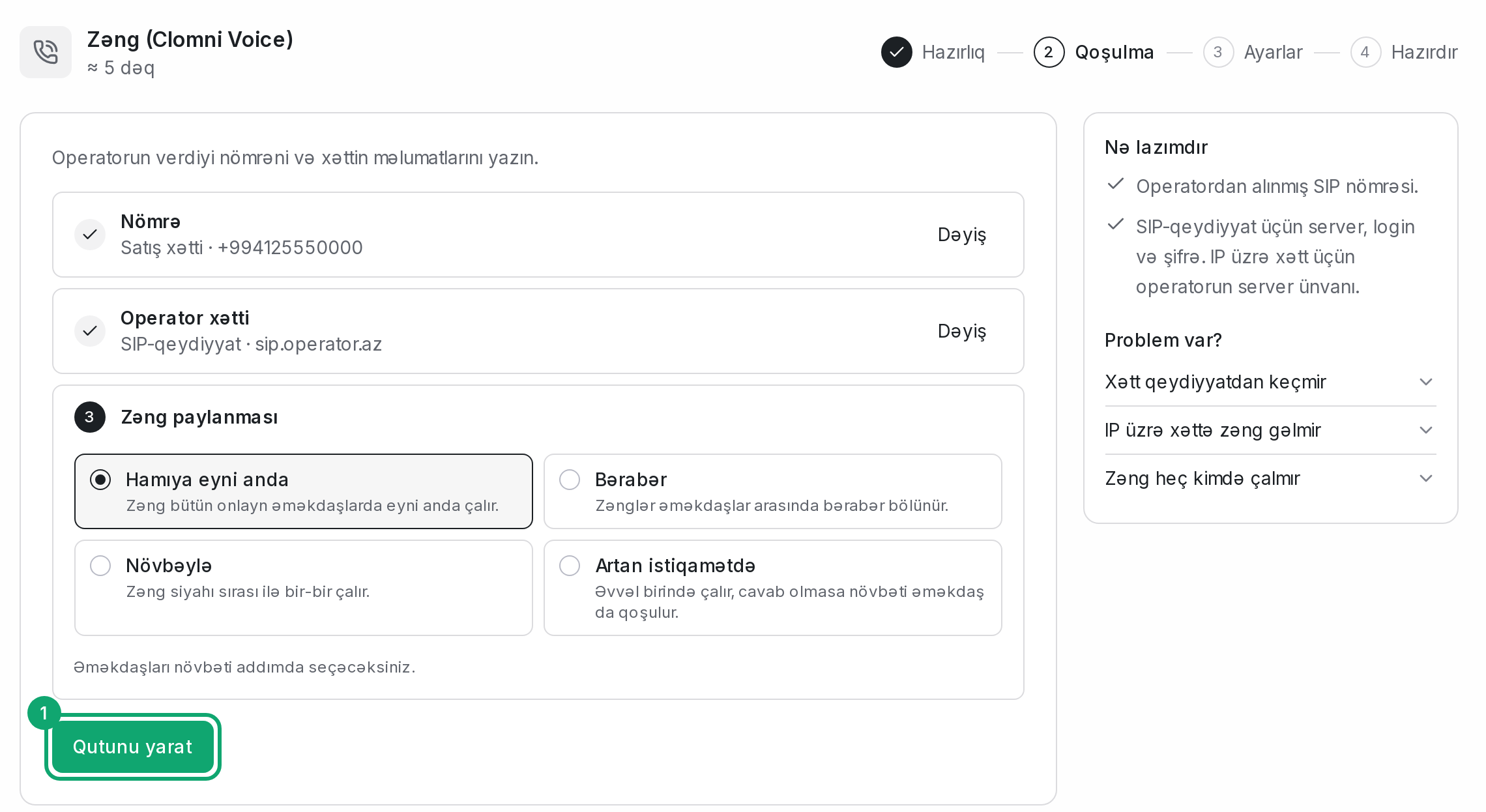
Choose the call distribution
How a call to the number rings your agents:
- “All at once”: the call rings every online agent at the same time.
- “In turn”: calls are shared evenly between agents.
- “In order”: the call rings one agent after another, in list order.
- “Adding up”: it rings one agent first; if nobody answers, the next one joins.
Then click “Create inbox”. You can change the distribution later in the inbox's “Collaborators” section.
-
7
Pick the agents
On the “Inbox settings” screen, under “Team members”, pick the agents who will take this number's calls and click “Continue”. A customer's call rings only this inbox's agents. Even as an admin, add yourself if you will take calls.
-
8
Send the details to your operator
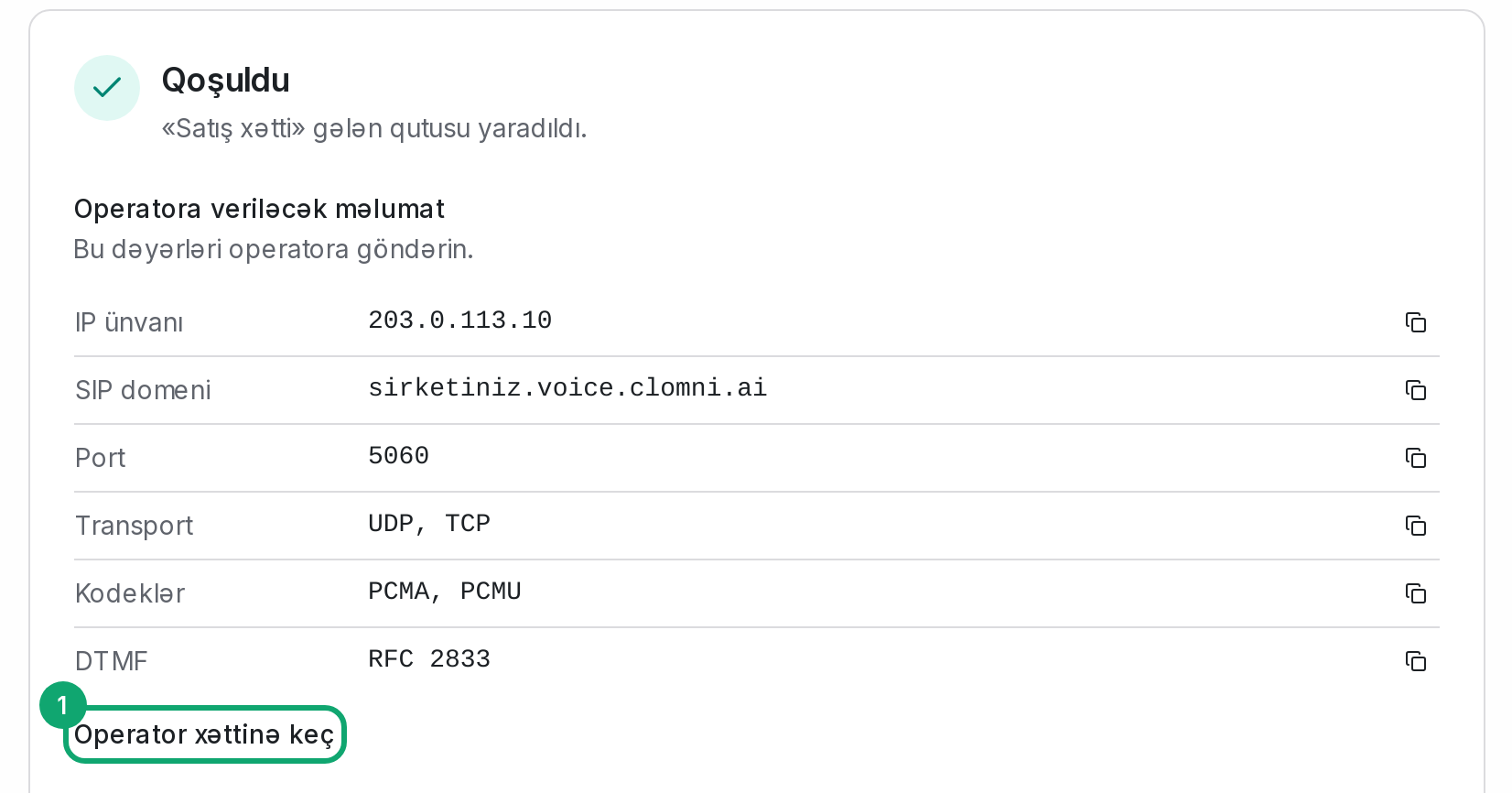
The “Connected” screen shows “Details for your operator”: “IP address”, “SIP domain”, “Port”, “Transport”, “Codecs”, “DTMF”. The button next to each row copies the value. Send these values to your operator. On an IP line, your operator has to add our IP address to their allow list. To see the line's status, click “Go to the operator line” (see “Operator line: status, settings and call distribution”).
-
9
Test it
Make sure your status is “Online” and call the number from a phone. The call should ring in the browser of an online agent of the inbox. If it doesn't, see “Clomni Voice not working: line, call and microphone problems”.
-
10
A number already working on Voice
If the number was already set up on your company's Voice account (for example, with desk phones), the inbox does not create a new line: it takes over the existing one. Its call flow, IVR menu and desk phones stay as they are. The inbox has no “Call distribution” section: distribution is set up in “Voice settings”.
-
11
If you delete the inbox
When an ordinary Voice inbox is deleted, its number, line and distribution are deleted on Voice too. When the inbox of a number that already worked on Voice is deleted, nothing is deleted on Voice: only the inbox's agents stop getting that number's calls.