
Clomni Voice not working: line, call and microphone problems
Last updated: 27 October 2026 · 11 min read
Common Clomni Voice problems and how to fix them. Check the line's status in the inbox's “Operator line” section (see “Operator line: status, settings and call distribution”).
Steps
-
1
The line does not register
If the status is “Error”, your operator's answer is written below it. Check the server, login and password with your operator. The port is usually 5060. Correct them in the “Line settings” card, click “Save”, then check the status with “Refresh”.
-
2
Calls do not reach an IP line
Your operator has to allow our IP address on their side. What they need is in the inbox's “Operator line” section, in the “Details for your operator” card. “Operator's server address” must be the address calls actually come from.
-
3
Calls ring for nobody
Add agents to the inbox and check that they are “Online”. A customer's call rings only the “Online” agents in the inbox's “Collaborators” list. It does not ring agents who are “Busy” or “Offline”.
-
4
Calls don't ring for me
- Your status must be “Online”.
- You must be an agent of this Voice inbox.
- If “The phone could not connect. Calls will not ring in this browser.” appears, the browser can't reach Voice. Check your internet; a company network or VPN can block the connection. The panel tries again by itself after a while, and you can reload the page.
- If you are already on a call, a second call does not ring for you.
- After Clomni is updated, reload old open tabs.
-
5
Microphone errors
- “No microphone access. Allow it from the lock icon in the address bar, then answer again.”: click the lock icon in the browser's address bar, allow the microphone for this site and click “Answer” again.
- “No microphone found. Connect a headset or a microphone.”: connect a microphone or a headset to the computer.
- “The microphone is in use by another app.”: close the app holding the microphone (Zoom, Teams and so on).
With these errors the call is not cut: it keeps ringing, so you can fix the problem and answer again.
-
6
Audio problems during a call
Check on the call card that the microphone is not muted: if it says “Microphone off”, click the microphone button. The right microphone and speaker must be selected in the computer's sound settings. The browser tab must not be muted. A VPN or company network can cut the audio: try another network. More in “The customer can't hear me on a call”.
-
7
Why there is no reply box
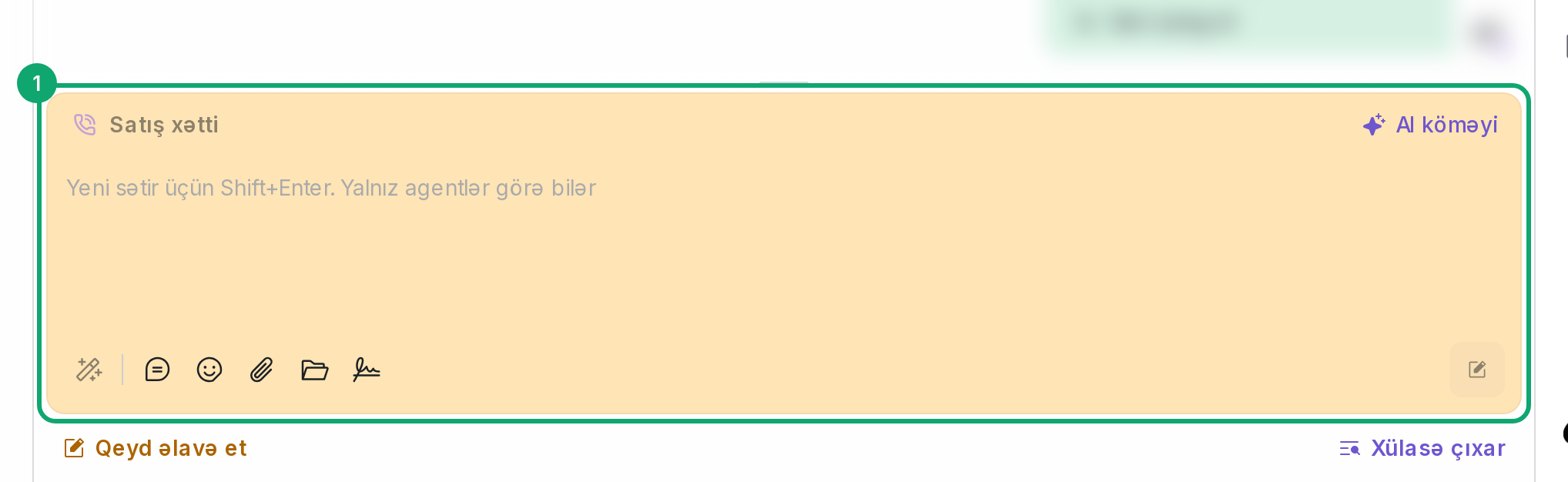
In a Voice inbox's conversation you can't write to the customer, because a phone line carries no text. Only a private note can be written there, which your team sees: the editor is yellow, type the text and click “Add Note”. To write to the customer, use their conversation on another channel (WhatsApp, email and so on).
-
8
A call does not show in the conversation
A call usually shows in the conversation within seconds. Calls that arrive late are added by an automatic check at night: the last two days' calls are written at their own time. Internal calls and calls to numbers that belong to no inbox (for example, numbers that only ring desk phones) are not written in Clomni.
-
9
The inbox can't be created
- “This number is already connected to another inbox.”: an inbox for this number already exists.
- “Enter the number with the country code, for example +994125550000.”: write the number with + and the country code.
- “Enter the address without http or a port, for example sip.operator.az.”: remove http:// and :5060 from the server address.
- “Clomni Voice did not accept the request.” or “That did not work. Try again in a moment.”: try again a little later. If it keeps happening, contact the Clomni team.
- The “Calls (Clomni Voice)” card is missing: Voice is not enabled for your account, contact the Clomni team.
-
10
“Voice settings” does not open
Only administrators see the button. If “Could not open the Voice panel. Try again.” appears, click it again. If the browser blocks the new tab, allow pop-ups for this site.
-
11
No recording or transcript
Where the recording and transcript appear, and when they are not made, is in “Where call recordings and transcripts appear”.