
Call a customer from a Clomni Voice line
Last updated: 27 October 2026 · 7 min read
You can call a customer from a Voice line straight from the browser. The customer sees the line's number, the call is recorded and it is written into the customer's conversation.
Steps
-
1
What you need
- Your status must be “Online” or “Busy”: when you are “Offline”, the phone in your browser is switched off.
- You need an extension and access to the Voice inbox (be one of its agents).
- The contact needs a phone number. If there is none, add it to the contact.
-
2
Call from a conversation
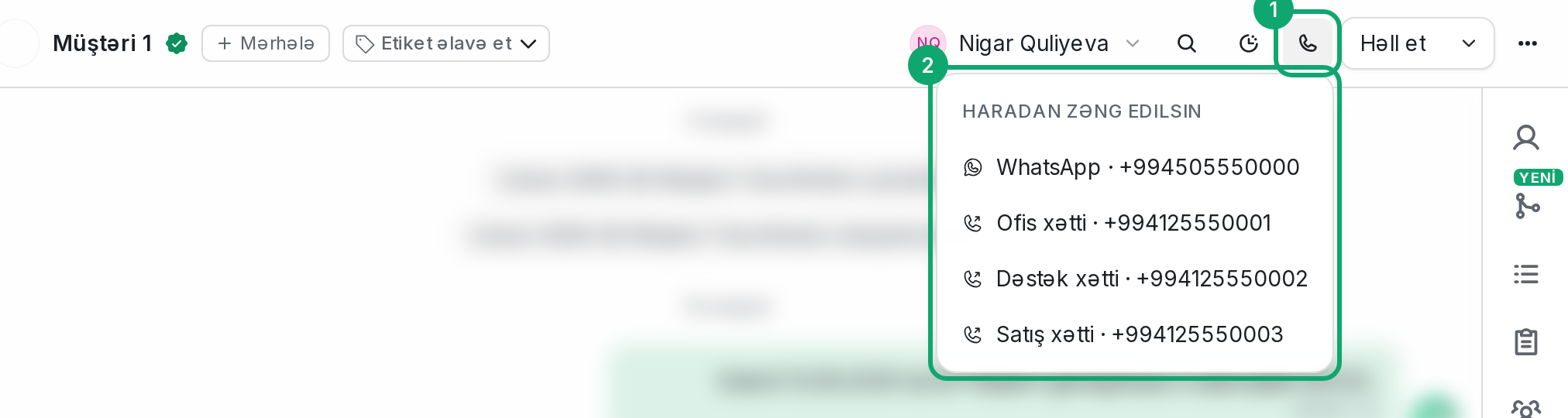
Click the call button in the conversation header (hovering it shows “Call”).
- In a Voice line's own conversation, the call goes out from that line without asking.
- In a conversation on another channel (WhatsApp, website chat, email and so on), if there are several ways to call, the “Call from” menu opens. It lists the channel's own call (for example, “WhatsApp · inbox name”) and your Voice lines (“line name · number”). Pick one. If there is only one way, no menu opens and the call starts at once.
A call from a Voice line is written into the customer's conversation on that line.
-
3
How the call goes
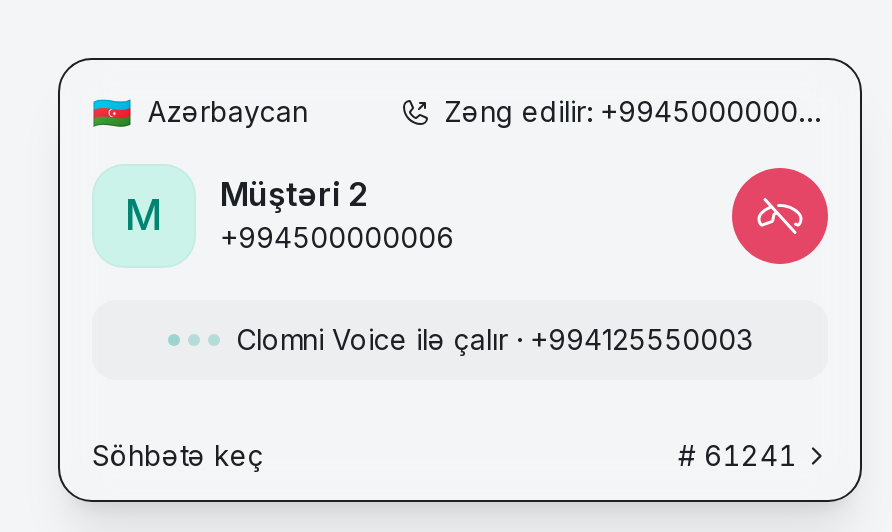
A call card opens in your browser first (“Calling {number}”) and connects by itself. Then the customer's number is dialled and you hear it ringing. Talk when the customer answers. During the call the buttons are the same as on an incoming call: mute, “Keypad”, “Transfer call” and end call (see “Answer a Clomni Voice call in the browser”).
-
4
Call back
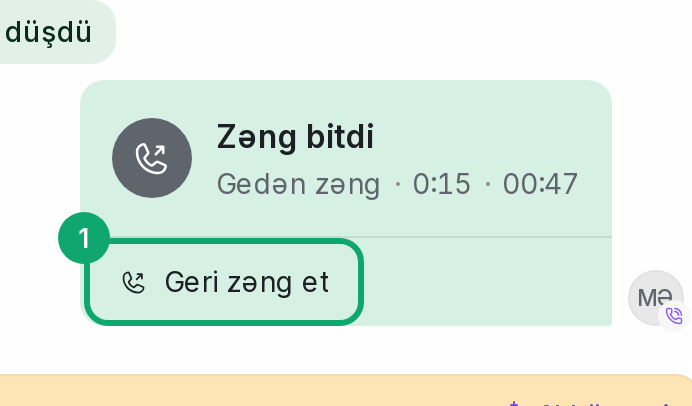
In a Voice line's conversation, every finished call's message has a “Call back” button. It calls the customer from the same line. Use it to return a missed call too.
-
5
From the Calls page
To dial a number by hand, open Conversations › “Calls” in the left menu (see “Calls page: missed calls, call list and dialer”).
-
6
If the call fails
The reason appears on screen:
- “That number is busy.”: the customer is on another call.
- “Nobody answered.”: the customer did not pick up.
- “The call was rejected.”: the customer declined the call.
- “There is no such number.”: check the number and write it with the country code.
- “That number is not reachable right now.”: the customer's phone is off or out of reach.
- “Your phone is not connected. Your status has to be Online.”: set your status to “Online”.
- “Your phone is not connected yet. Try again in a moment.”: the phone in your browser is connecting, wait a few seconds.
- “The call server is not running right now. Try again in a moment.”: call again a little later.
- “The call did not go through.”: try again; if it keeps happening, contact the Clomni team.
-
7
The call button is missing or greyed out
- The contact has no phone number.
- You have no extension, or you can't see any Voice inbox.
- Another call is in progress or ringing: the button comes back when it ends.