
Extensions: call a colleague or a department
Last updated: 27 October 2026 · 5 min read
When the account's first Voice inbox is created, every agent gets an extension automatically, for example 101, 102. An agent who joins the account later gets one too. You can't choose the number: Voice assigns it. Colleagues call each other and transfer calls to each other by extension. When an agent is removed from the account, their extension is closed.
Steps
-
1
Find your extension
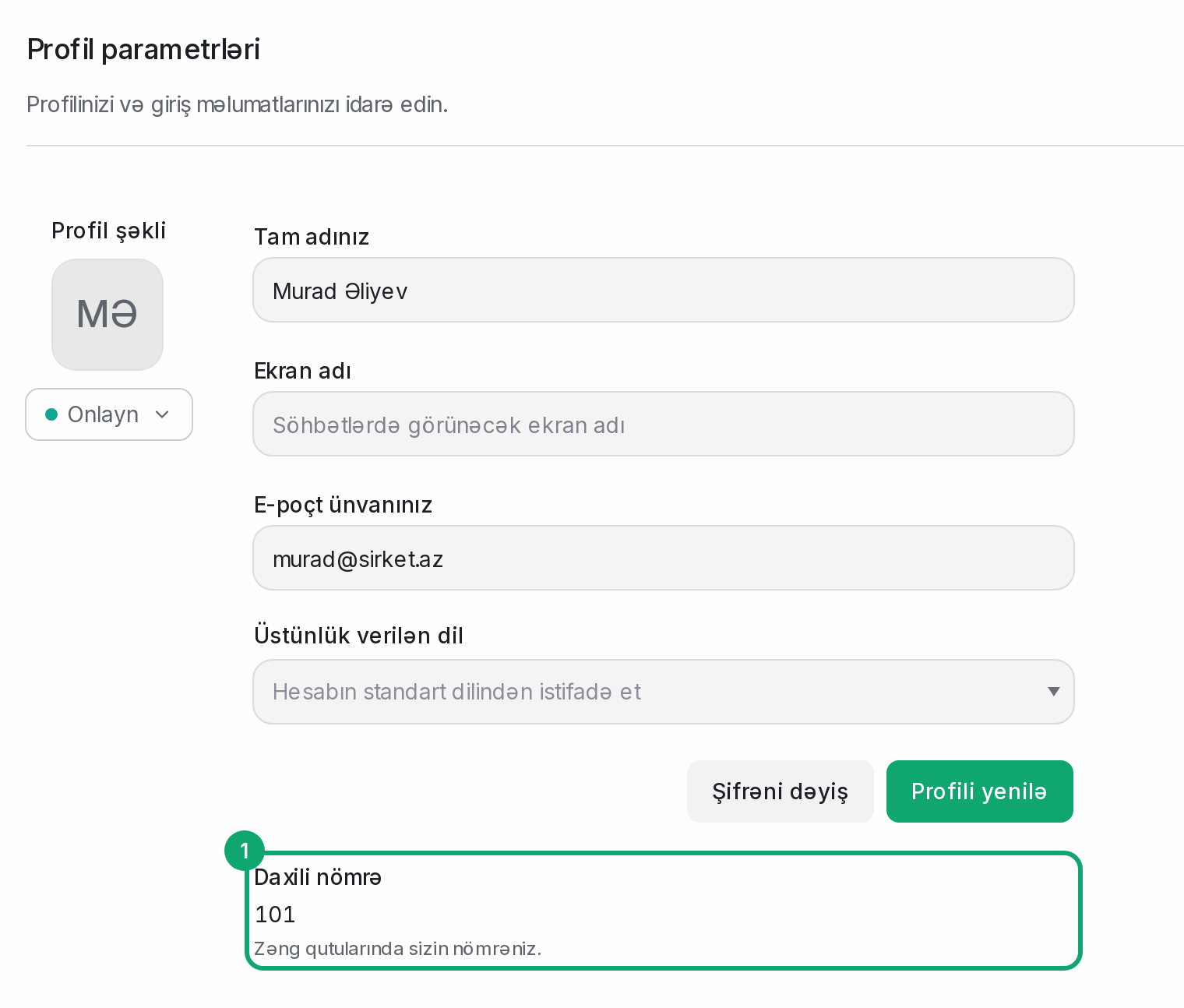
Click your profile picture at the bottom of the left menu and choose “Profile Settings”. Your number is under “Extension”: “Your number in the call inboxes.” It also shows on the “Calls” page: “Your extension: 101”. In Settings › Organization settings › Agents and in a Voice inbox's “Collaborators” section, each agent's number is shown as “Ext. 101”.
-
2
Call a colleague
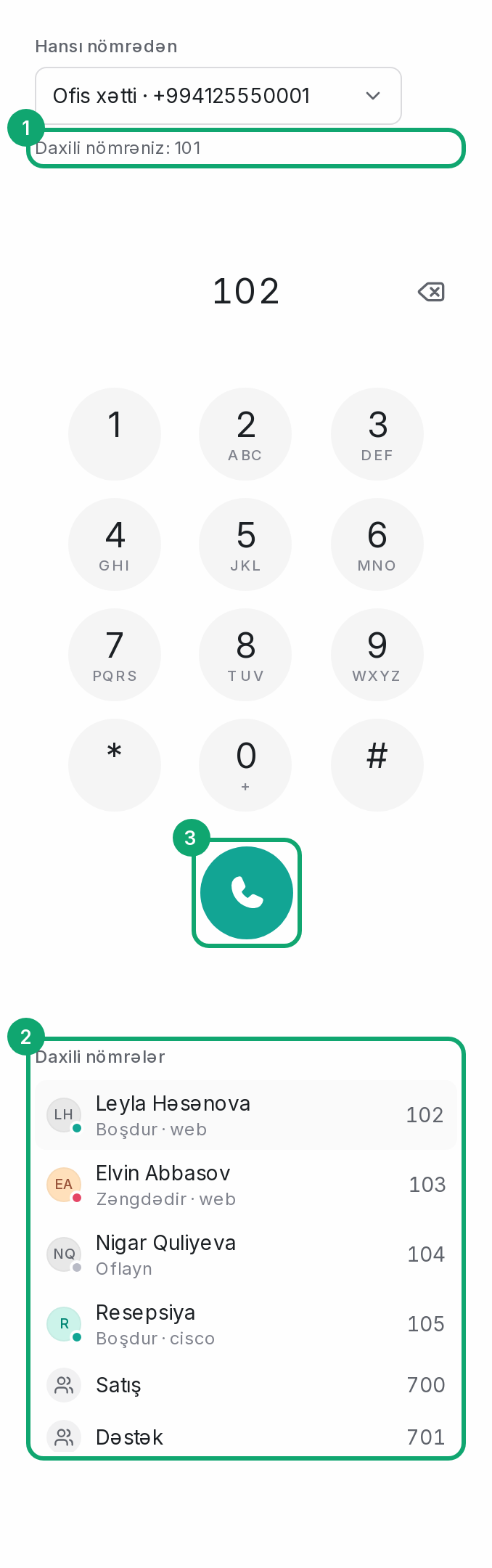
Open Conversations › “Calls” in the left menu. In the dialer on the right, “Call from” must be set to a Voice line. Below it is the “Extensions” list: agents, desk phones and departments with their numbers. Under each name is their state: “Free”, “On a call”, “On hold”, “Ringing”, “Offline”, “Not taking calls”, “Away”. Click a name and its number is filled in. Then click the green button. You can also type an extension on the keypad (2 to 6 digits).
-
3
Call a department
A department (for example, Sales 700) is a group set up on Voice. A call to its number rings its agents by the department's own rule. Departments show in the list with a people icon.
-
4
How an internal call looks
When a colleague calls you, the card shows their name, “Extension 102” and “Internal call”. Internal calls don't open a customer conversation and are not written into conversations.
-
5
Desk phone
A Cisco or other IP phone can be connected to the same extension. An administrator does this in the panel that the “Voice settings” button opens, in a Voice inbox's “Operator line” section (see the “Voice settings” articles). A connected device shows under the name in the “Extensions” list.