
How an agent takes calls: mobile forwarding, schedule, leave
Last updated: 27 October 2026 · 5 min read
An agent's name, role and extension come from Clomni; change them in Clomni. The agent's card in the Voice panel sets how calls are taken.
Steps
-
1
Open the agent's card
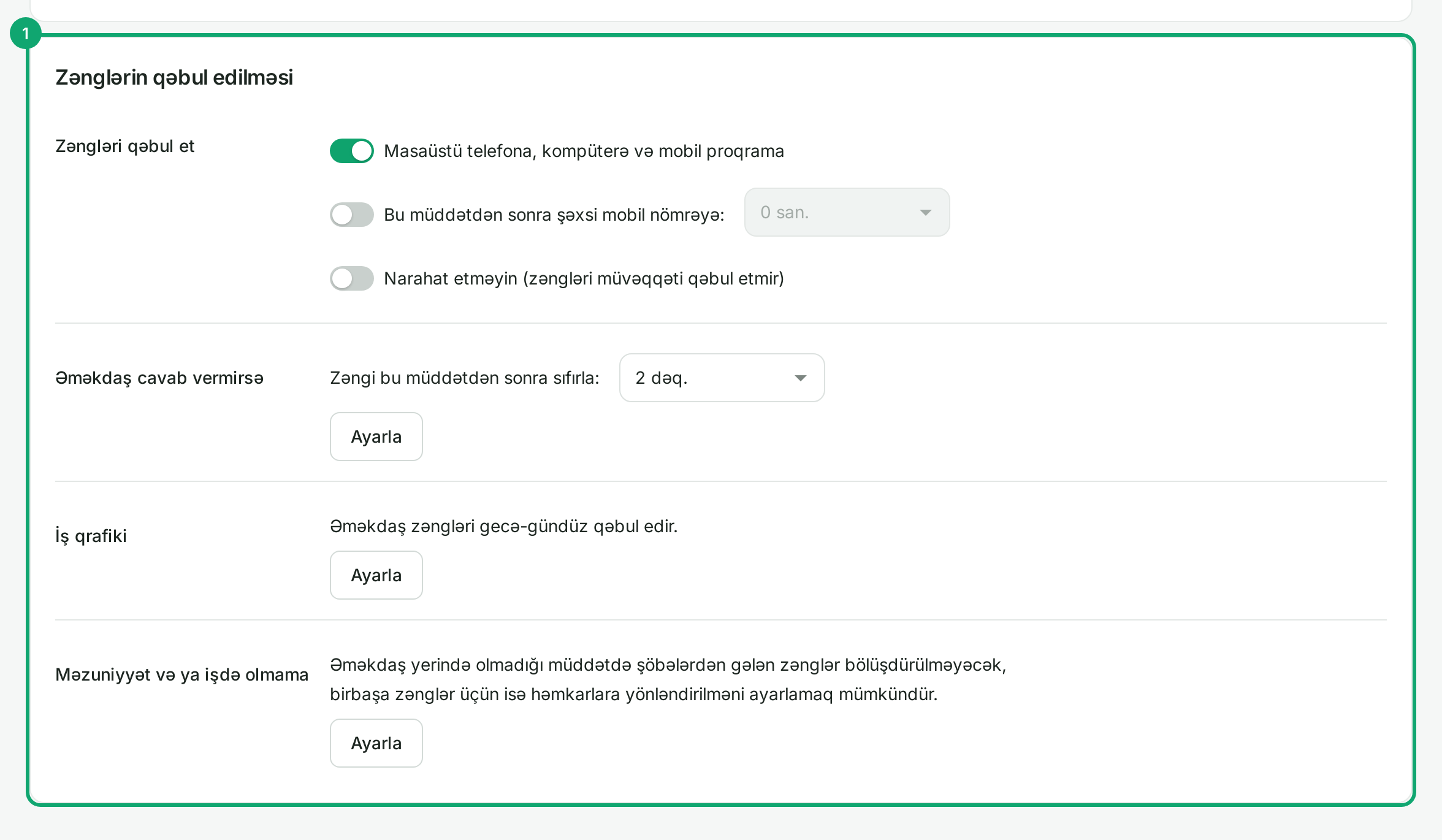
Under “Ayarlar › Əməkdaşlar” (Settings › Employees), click the agent and scroll to “Zənglərin qəbul edilməsi” (Taking calls). You can change your own settings on the “Profil” (Profile) page too: click your name at the bottom left of the panel.
-
2
Forward to a mobile number
At the top of the card, enter the number in “Şəxsi mobil nömrə” (Personal mobile number). Then turn on “Bu müddətdən sonra şəxsi mobil nömrəyə” (To the personal mobile after this time) and choose the delay: the call rings in Clomni first and, if not answered, also on the mobile after that time. If none of the agent's devices is connected (Clomni is closed, no desk phone), the call goes to the mobile right away.
-
3
If the agent does not answer
In “Əməkdaş cavab vermirsə” (If the employee does not answer), choose how long the call rings. With “Ayarla” (Set up), choose where a direct call to the agent goes next, for example to voicemail or to a colleague. A call that came through a department continues by the department's own setting.
-
4
Personal schedule and leave
In “İş qrafiki” (Working schedule), click “Ayarla” and pick a schedule: “Gecə-gündüz” (Around the clock), by days of the week (for example 5/2), in shifts, or by days of the month. Outside the schedule, department calls do not reach the agent. In “Məzuniyyət və ya işdə olmama” (Leave or absence), enter the dates: during that time department calls are not given to the agent, and direct calls can be forwarded to a colleague.
-
5
Status comes from Clomni
Do not change “Narahat etməyin” (Do not disturb) in Voice. The agent's status in Clomni is passed to Voice by itself: Online takes calls, Busy and Offline do not. After any change, click “Yaddaşda saxla” (Save).