
Set up and train the AI agent with Claude, ChatGPT or Cursor
Last updated: 9 November 2026 · 9 min read
Instead of setting the agent up step by step in the panel, you can do it from an AI app such as Claude, ChatGPT or Cursor. You write what you want in one sentence, and the app creates the agent in Clomni, adds knowledge, tests it and shows you the result. This helps most when you load a lot of knowledge or train the agent from past conversations: you can add hundreds of Q&As at once, find the questions the agent couldn't answer and undo any change.
The app works with your permissions. It shows every change first, and nothing changes unless you agree. Tests and knowledge imports are paid from the account's AI credit.
Steps
-
1
Connect Clomni to the AI app
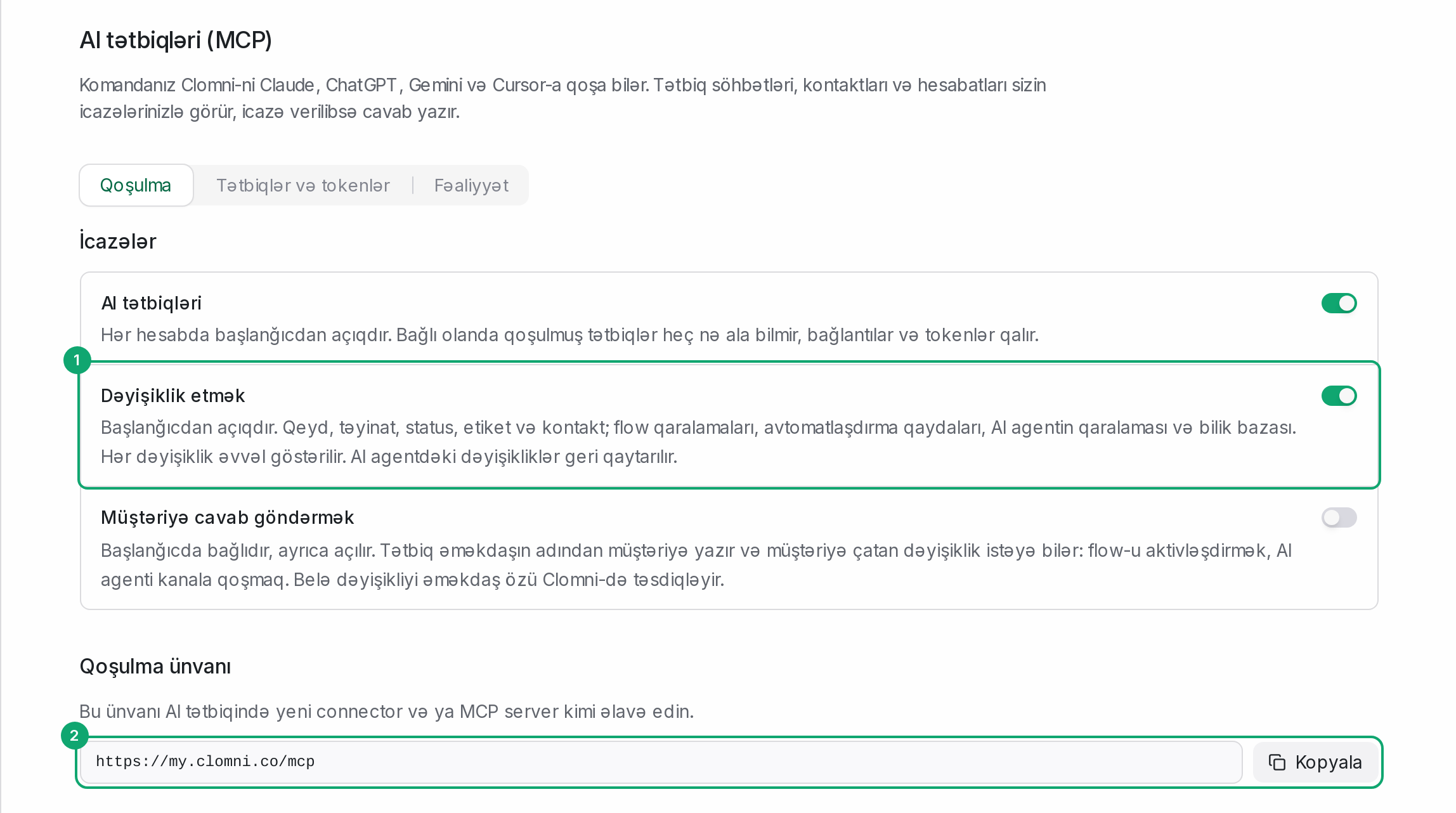
In Settings › Workspace settings › AI apps, copy the “Connection URL” and add it to the AI app as a connector. To train the agent, the “Make changes” switch must be on: it is on in every account from the start. Steps for each app: Connect Clomni to Claude, ChatGPT and Gemini.
-
2
Create the agent in one sentence
Tell the app what you want, for example “Create an AI agent for sales in Clomni, with a friendly tone”. The app drafts the agent's name, role, tone and rules and shows them to you first. When you agree, the agent is created in Clomni. A new agent is on no channel and writes to no customer.
Apps such as Claude also get Clomni's ready tasks: build an agent from scratch, check an existing agent, fix a wrong answer, train from past conversations and load knowledge from a document. The app builds the agent the way Clomni's training guide describes.
-
3
Add knowledge
The app adds Q&As and web pages to the agent's knowledge:
- it adds or updates up to 500 Q&As at once;
- give it a web page link and it adds the page to the agent's knowledge, with the Q&As from the page waiting as suggestions;
- attach a file to the chat, for example a PDF price list, and it reads the file and writes it as Q&As;
- it goes through waiting suggestions with you and approves or rejects them.
To upload the PDF file itself to the agent, use “Knowledge sources” › “Upload a file” in the panel.
-
4
Find what the agent doesn't know
Write “Find the questions the agent couldn't answer in last week's conversations”. The app brings the unanswered questions from the last 1 to 90 days and the waiting suggestions, and suggests answers. The answers you agree to go into the knowledge as Q&As. The app can also read your team's past conversations to find frequent questions and the answers your team really gave. Only an administrator can do this: phone numbers, e-mails and card numbers are hidden and customer names are left out.
-
5
Test it
Write “Test the agent with these 10 questions”. The app checks one question at once and up to 30 in the background, and shows the result: which answers are right, where the agent found no knowledge or handed the conversation over. Tests use the agent's draft and send nothing to customers. After a fix, test again and compare the two runs.
-
6
Confirm changes
The app makes every change in two steps: first it shows what will change, then it makes the change when you agree. Changes to an agent that already answers customers and publishing it, as well as connecting an agent to a channel, you confirm yourself in Clomni. The app then gives you a link: open it, look at the change and click “Confirm”. The link works for 15 minutes and opens only in your account.
-
7
Undo a change
Write “Undo the change you made to the agent yesterday”. The app lists the changes made to the agent through AI apps and undoes the one you choose: instructions, rules, Q&As, documents, channels and publishing. Changes are undone newest first. To go back on a change made in the panel, use the agent's “Versions” window.
-
8
Publish and connect a channel
When the agent is ready, ask the app to publish it and connect it to a channel, for example “Connect the agent to the WhatsApp channel”. To connect the agent to a channel, the “Reply to customers” switch in AI apps must be on too: it is off at first. You confirm every time the agent starts answering customers, in Clomni.
-
9
Example requests
- “Create an AI agent for sales in Clomni, with a friendly tone.”
- “Add the prices from this PDF to the sales agent's knowledge as Q&As.”
- “Find the questions the agent couldn't answer in last week's conversations and suggest answers.”
- “Test the agent with these 10 questions and show me the wrong answers.”
- “Undo the change you made to the agent yesterday.”
- “Connect the agent to the WhatsApp channel.”