A team member can't see conversations
Last updated: 27 September 2026 · 3 min read
An agent only sees conversations in the channels they are a member of. When you add a new team member, you also need to add them to the channels they work with. An administrator does this. An agent with a custom role may see fewer conversations, depending on the role's permissions.
Steps
-
1
Open the channel's settings
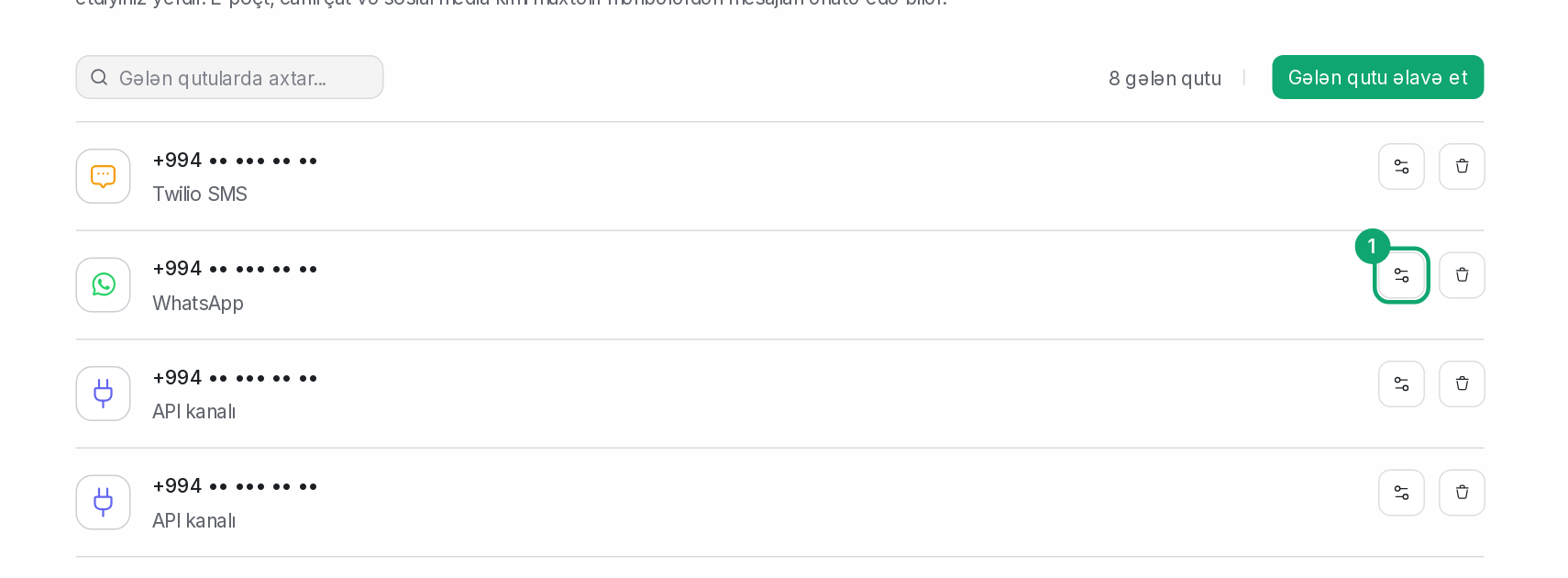
In the list in Settings › Workspace settings › Inboxes, click the settings button to the right of the channel.
-
2
Go to Collaborators
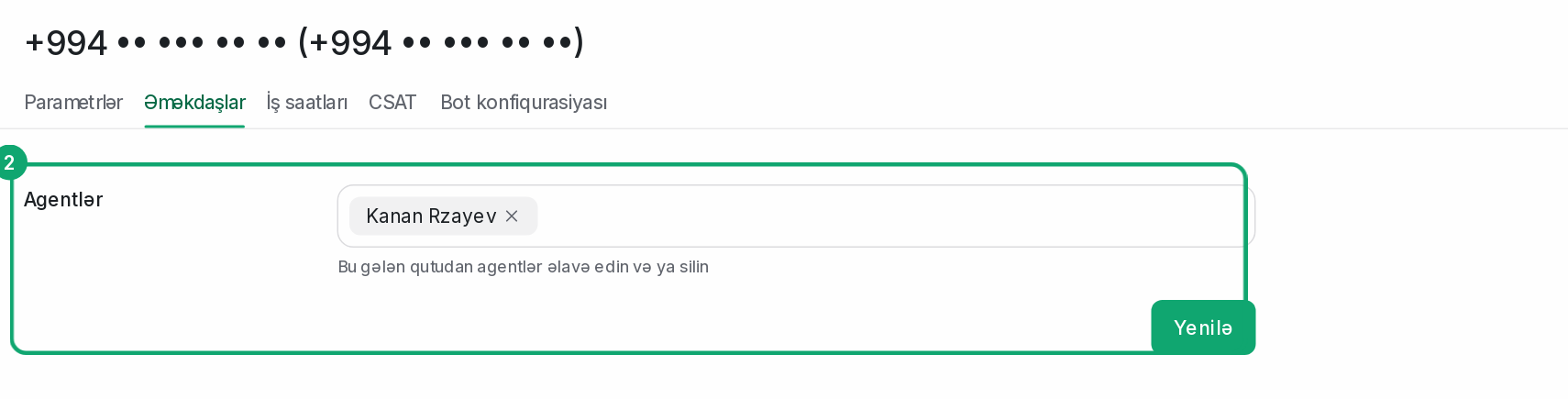
In the “Collaborators” section, add the agent to the “Agents” field and click “Update”. The conversations appear right away; there's no need to log in again.
-
3
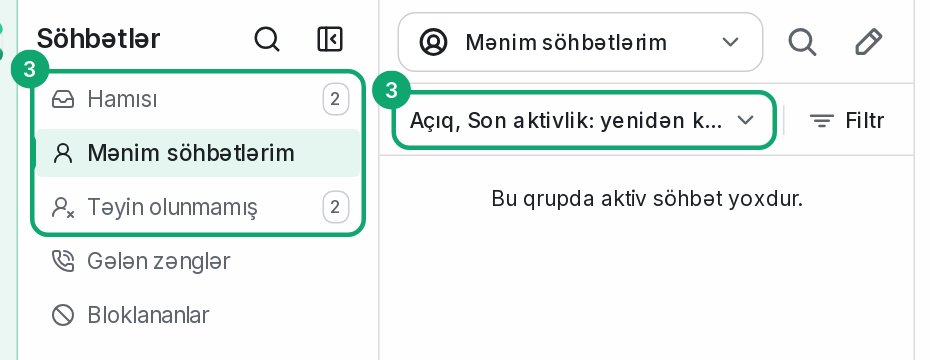
Check the list filter
In Conversations, the “My conversations” section only shows conversations assigned to the agent. To see the rest, open “All”. To see resolved conversations, choose “Resolved” in the status filter.