
Set up an Instagram comment campaign
Last updated: 11 October 2026 · 5 min read
A comment campaign replies automatically when someone writes a comment with a keyword under your Instagram post: it writes a public reply under the comment and sends the customer a private message (DM). An administrator sets up the campaign. Your Instagram account must be connected to Clomni first.
Steps
-
1
Create a campaign
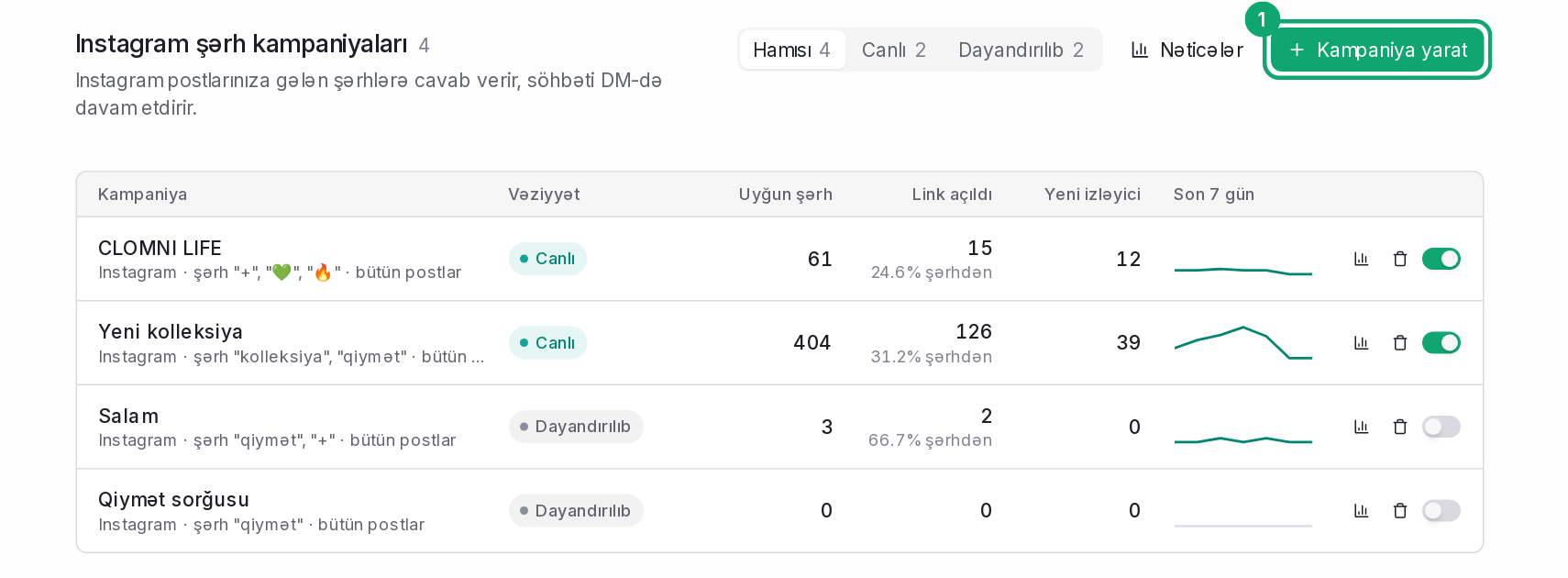
In the sidebar, open Campaigns › Instagram and click “Create campaign”. “How shall we start?” opens on the canvas: choose one of the ready-made flows (for example, “Send the link in a DM”) or “Start from a blank canvas”. At the top, enter the campaign's name and choose the Instagram inbox.
-
2
Set up the comment trigger
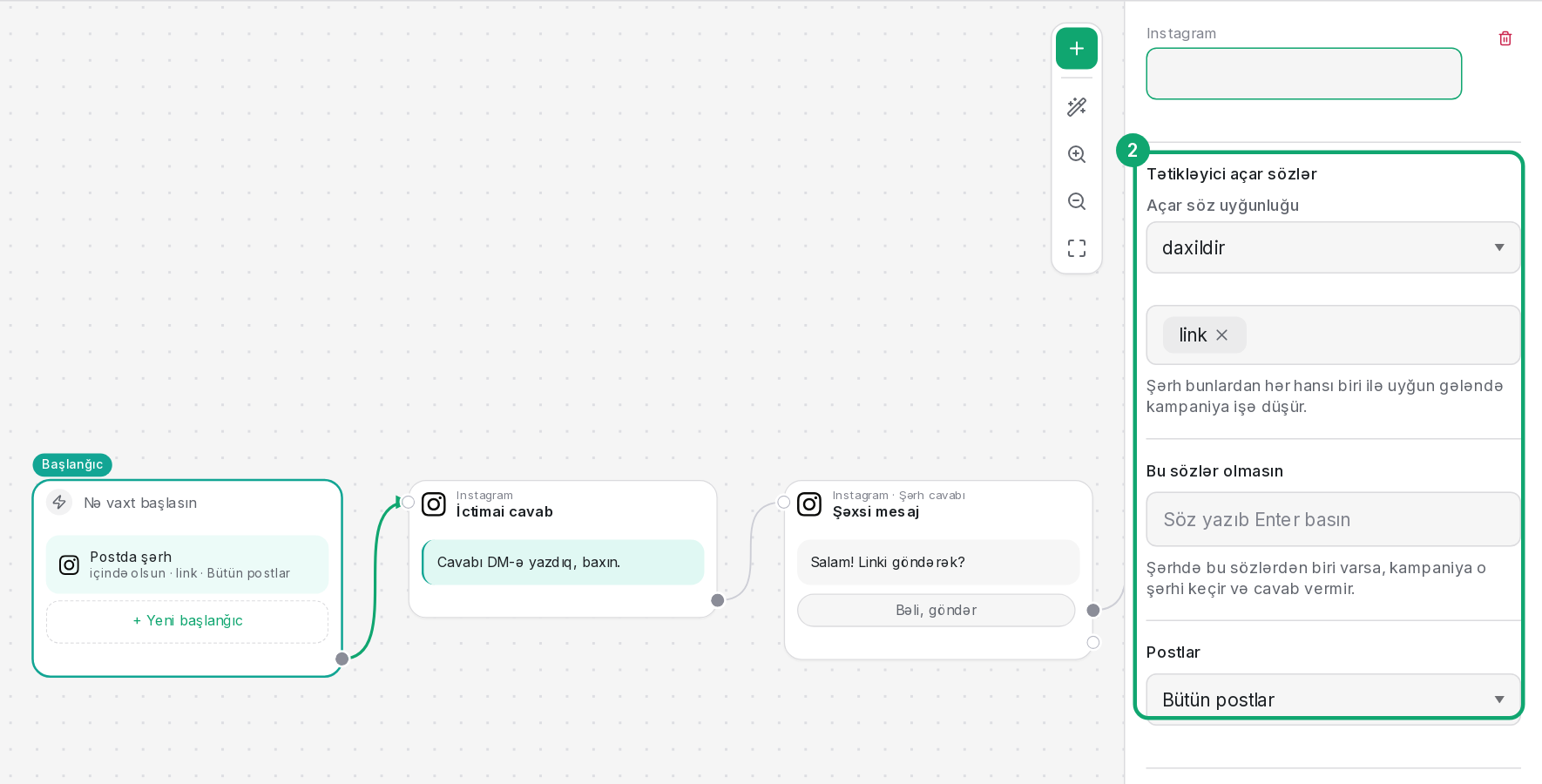
In the “Start” block (“Comment on a post”), type keywords in the “Trigger keywords” field and press Enter, for example: price, link, +. In “Keyword match”, choose “contains it”, “the whole word”, “starts with it”, “is exactly it” or “any comment”. In “Posts”, choose “All posts”, “Specific posts only” or “All posts except these”. You can search the list by a post's name or text, and a post already chosen in another campaign shows that campaign's name. When a comment matches two campaigns, the one that names the post answers first, then one that only leaves posts out, then one on all posts.
-
3
Write the replies
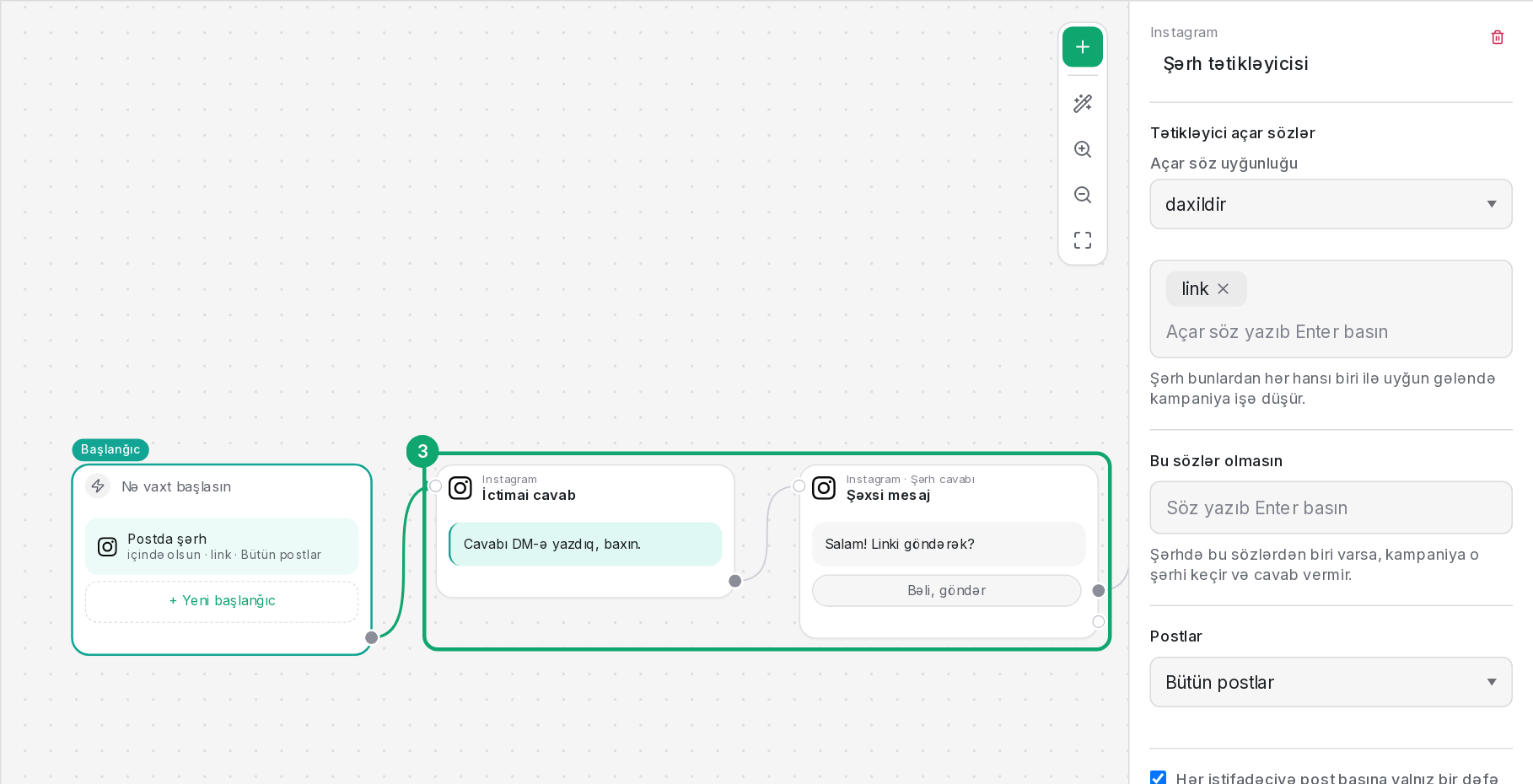
In the “Public reply” step, write the reply that goes under the comment; in the “Private DM” step, write the DM text. To add the commenter's name, write {{username}}. You can also add a link button to the DM. Meta allows only one private message per comment: the next messages go after the customer taps a button or writes back.
-
4
Check it with the preview
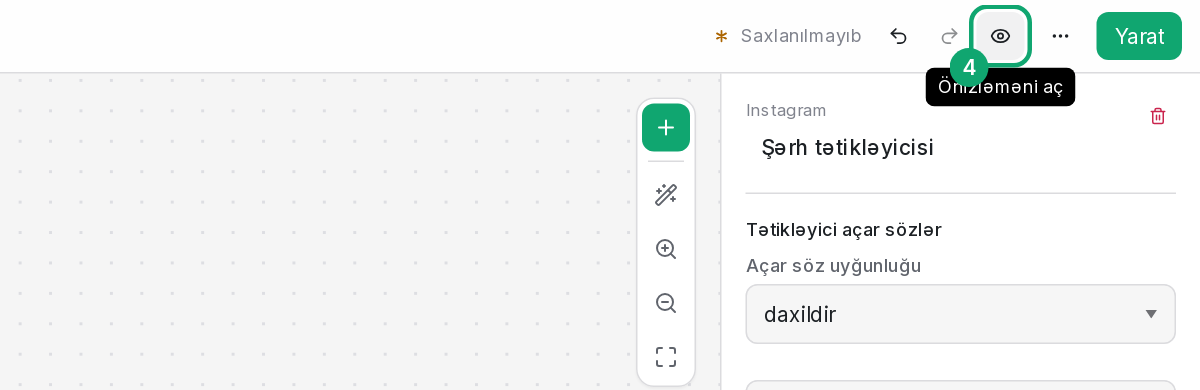
Use “Open the preview” to see the conversation the customer will get. If a block isn't connected to any step or a button leads nowhere, the canvas warns you.
-
5
Publish
Click the “Create” button at the top. The campaign goes “Live” right away and replies to new comments. Later changes go live with the “Update” button; until then customers get the old version.
