
An automation rule doesn't run
Last updated: 27 September 2026 · 4 min read
An automation rule checks its conditions when the event you chose happens, and does its actions when they match. An administrator manages rules on Settings › Workspace settings › Automation.
Steps
-
1
Check that the rule is active
The rule's “Active” switch in the list must be on. If a condition still refers to something that no longer exists (for example, a deleted custom attribute), Clomni turns the rule off itself and emails the administrators. Fix the condition of such a rule and turn it on again.
-
2
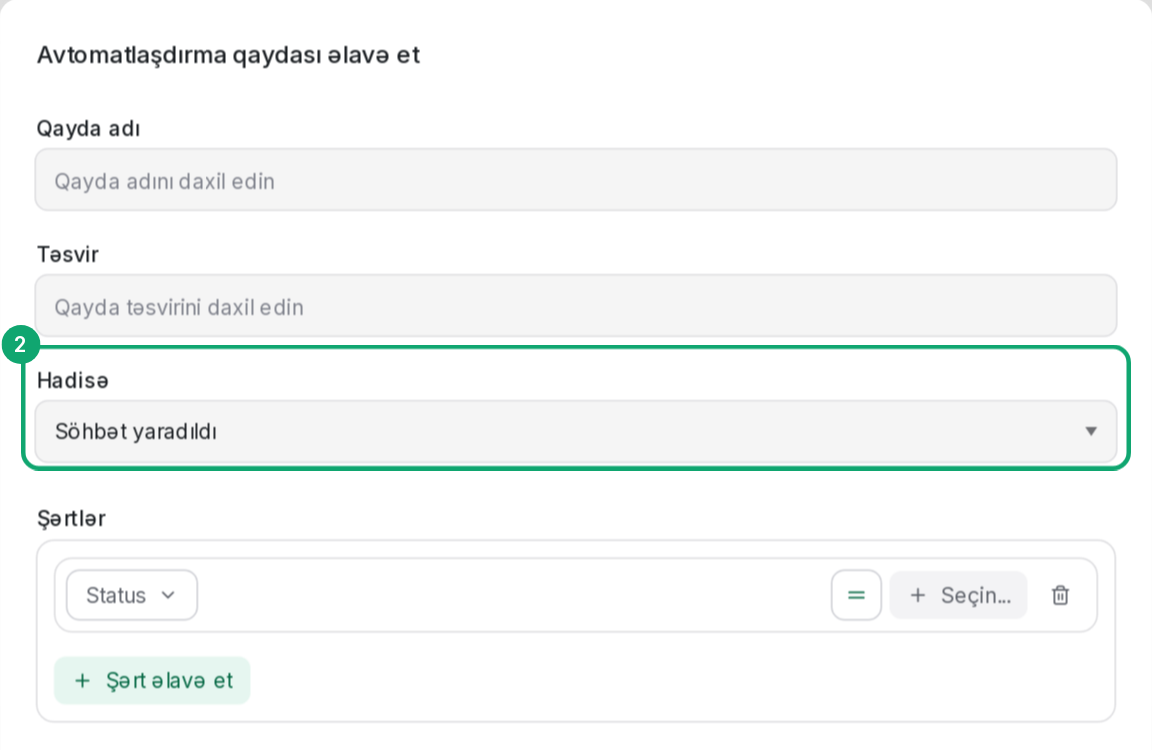
Check the event
A rule only runs on the event you chose: “Conversation Created”, “Conversation Updated”, “Message Created”, “Conversation Opened” or “Conversation Resolved”. For example, a “Conversation Created” rule doesn't affect a conversation that already exists.
-
3
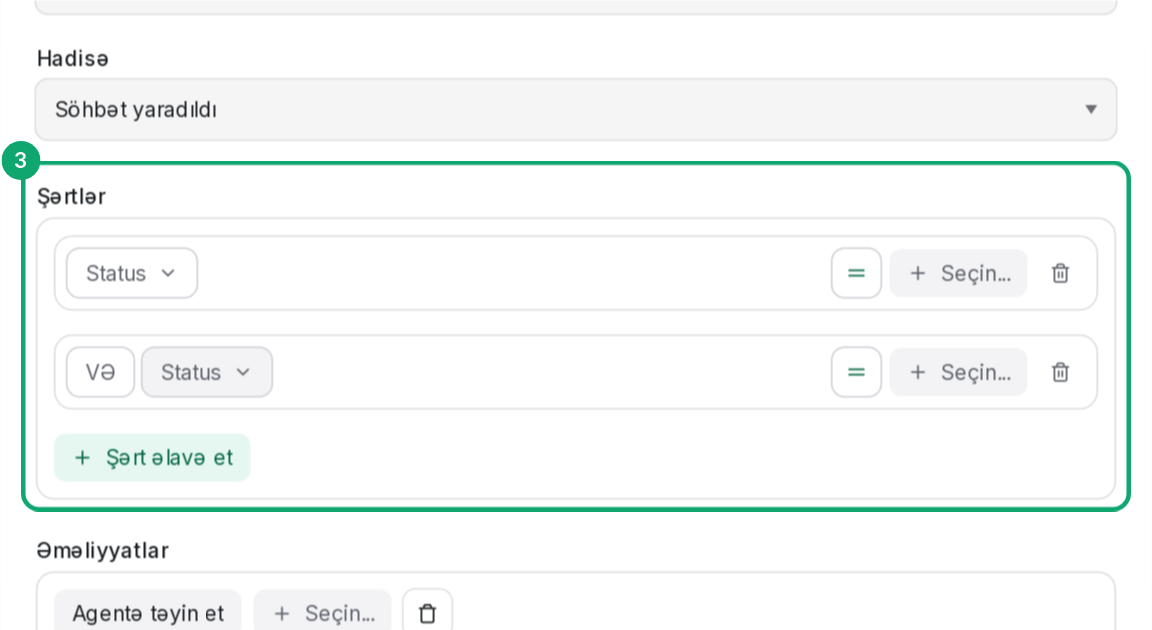
Check the conditions
If the conditions are joined with “AND”, all of them must be true at the same time. If any one of them is enough, choose “OR”. Check that the channel, label and text values are chosen correctly.
-
4
Rules don't trigger each other
A change one rule makes (a label, an assignment, a status) doesn't trigger another rule. This keeps rules from running in an endless loop. Auto-reply emails don't trigger rules either.