Assign conversations automatically
Last updated: 27 September 2026 · 4 min read
In a channel with auto-assignment on, each new conversation goes to one of the channel's agents in turn. Only agents with “Online” status are in the rotation. Auto-assignment is off by default in new channels. An administrator sets it up.
Steps
-
1
Open the channel's Collaborators section
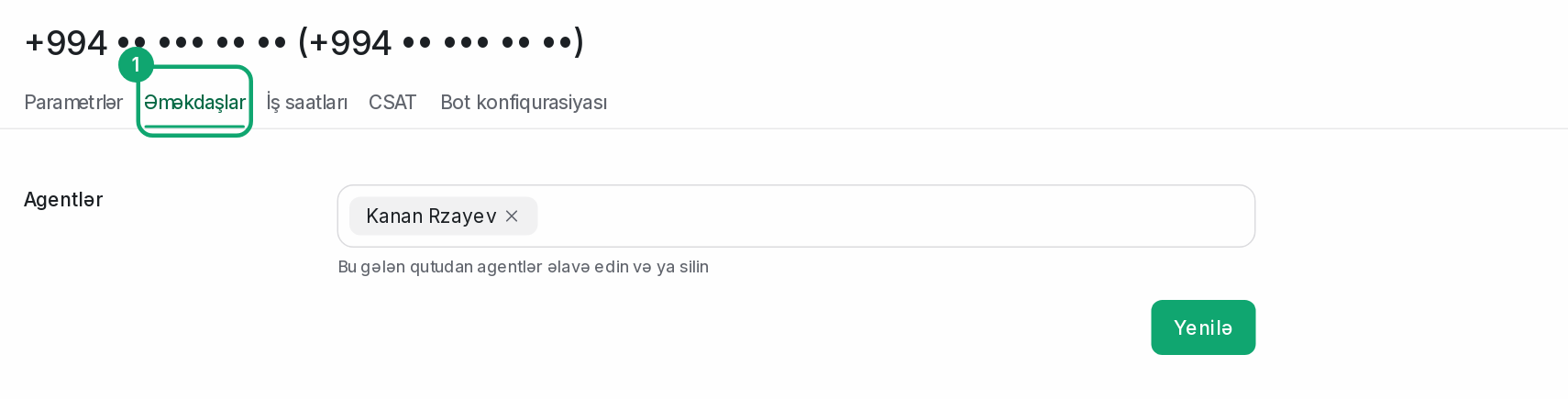
Open the channel's settings from the list in Settings › Workspace settings › Inboxes and go to the “Collaborators” section.
-
2
Turn on auto-assignment
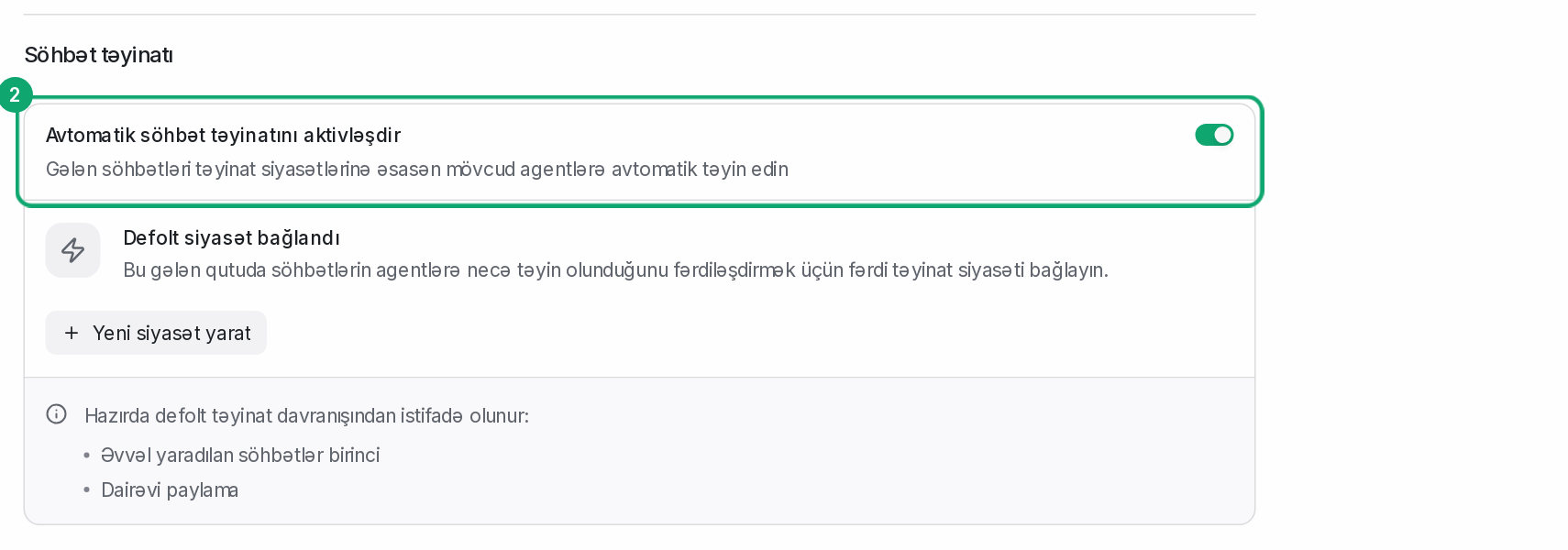
In the “Conversation Assignment” part, turn on “Enable automatic conversation assignment”. Conversations only go to team members in this channel's “Agents” list.
-
3
Check the agents' status
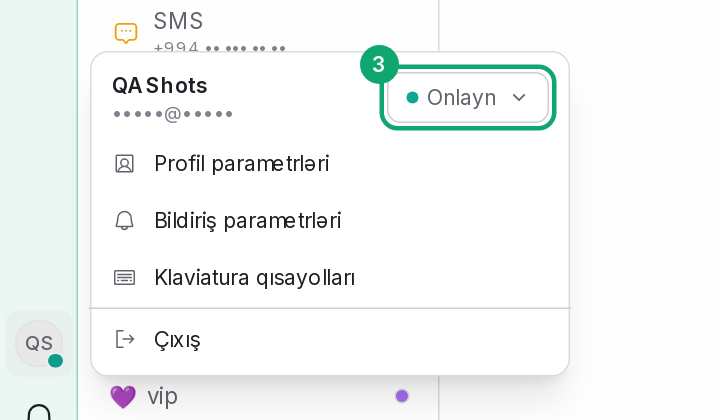
Each agent picks their status from their own profile menu in the sidebar: “Online”, “Busy” or “Offline”. “Busy” and “Offline” agents don't get new conversations. If nobody is online, the conversation waits in the “Unassigned” list.
-
4
Set a limit
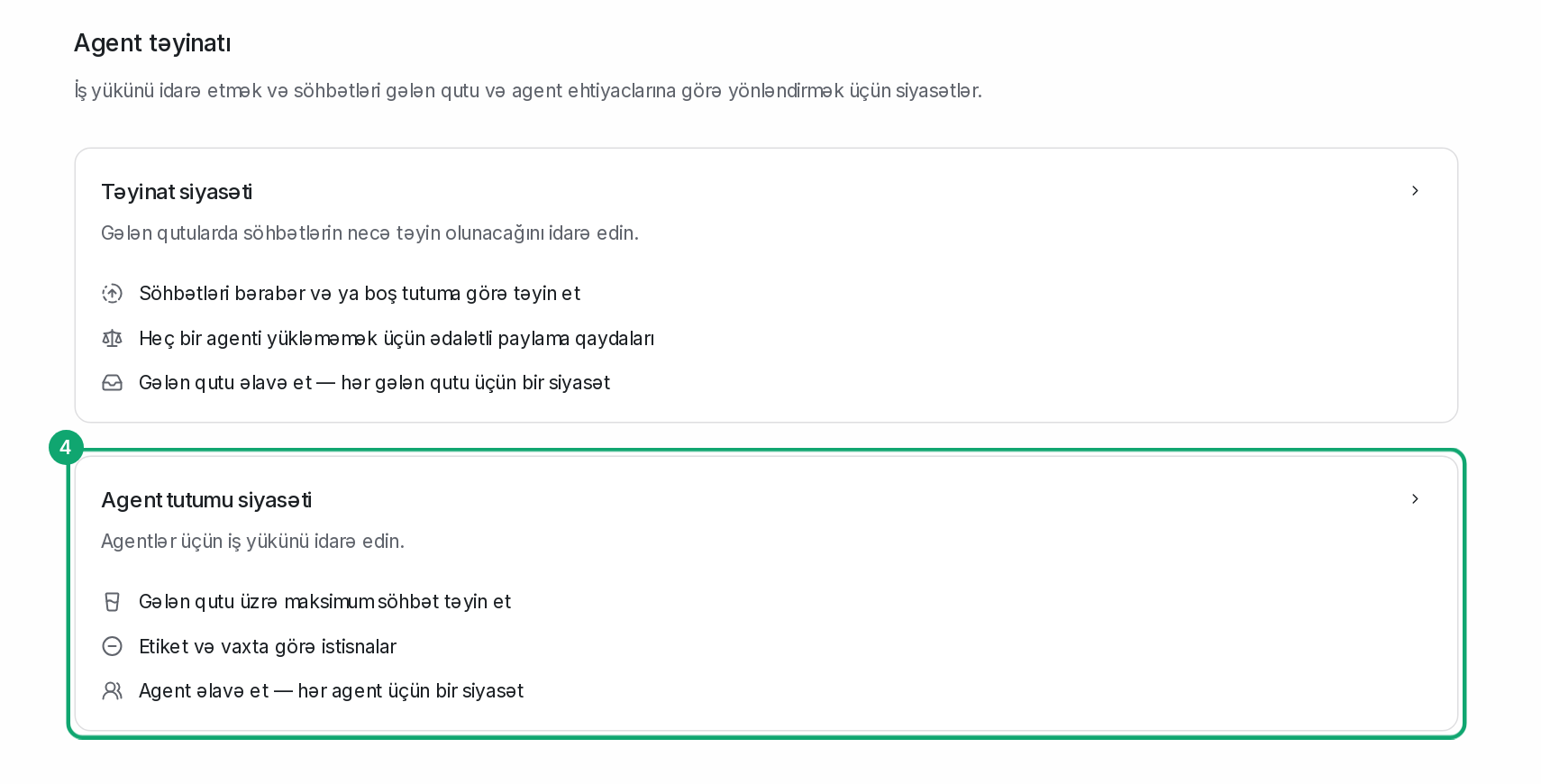
An agent capacity policy limits how many conversations one agent gets automatically. If your plan has it, open the “Agent capacity policy” card on Settings › Organization settings › Agent Assignment and enter the maximum number of conversations per inbox.