
WhatsApp messages are not arriving: what to check
Last updated: 27 September 2026 · 4 min read
If messages your customers write do not show in the dashboard, the cause is usually in one of three places: the number's connection, the notifications Meta sends, or the message itself.
Steps
-
1
Check that the number is connected
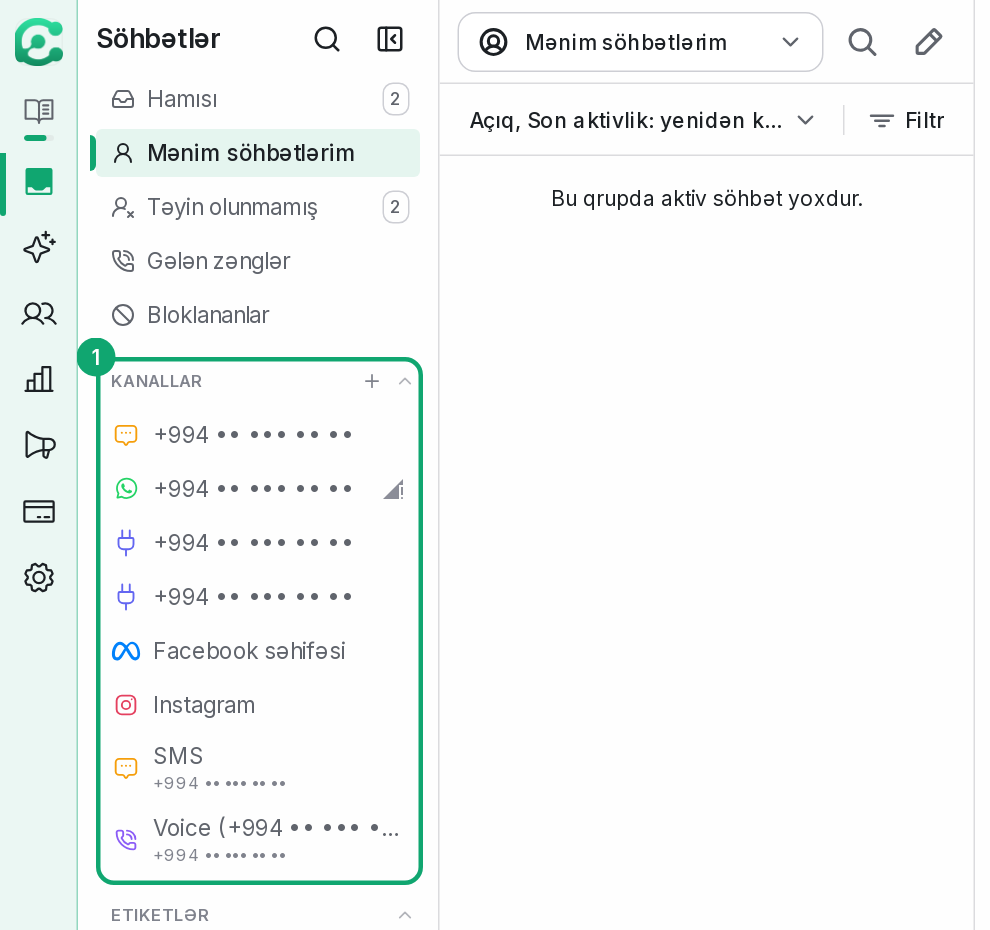
In the left menu, look at the Conversations › Channels list. If there is a red exclamation icon next to the channel, its connection has expired and you need to reconnect the channel. A QR number has a status dot next to it: green means the number is connected, yellow or red means there is no connection.
-
2
Check Meta's notification setup
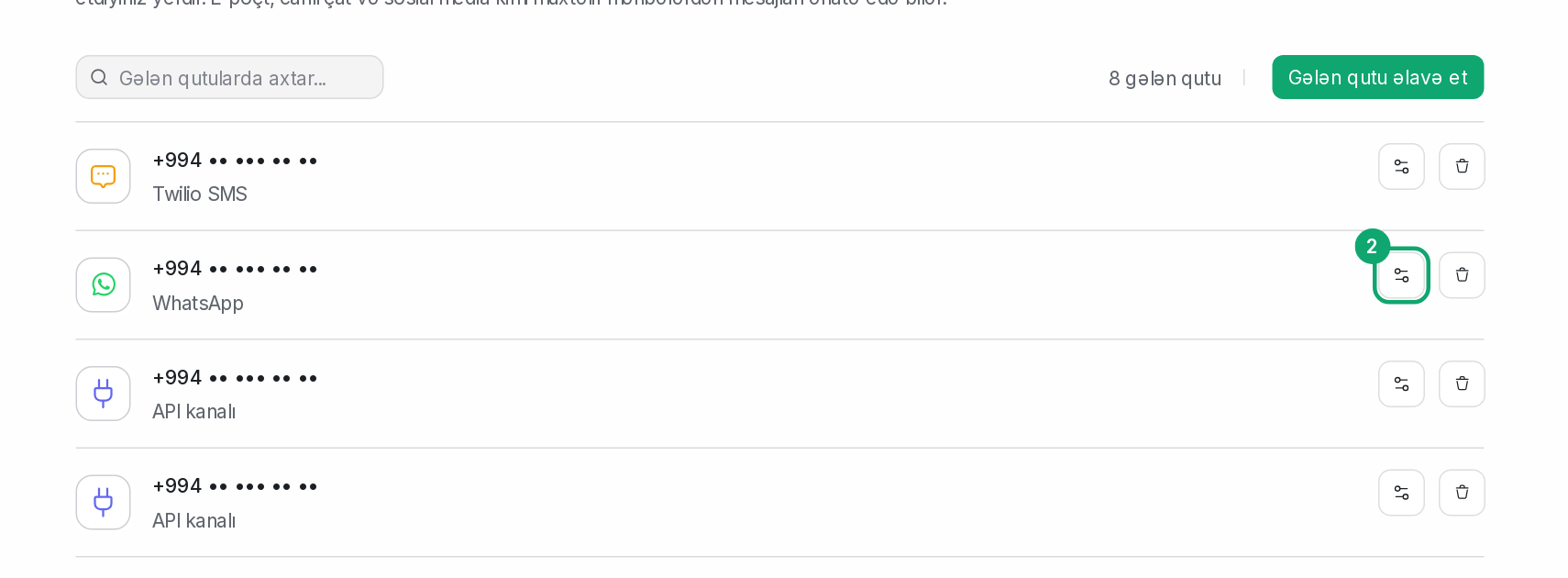
For a WhatsApp Cloud API number, open the channel's settings from the list in Settings › Workspace settings › Inboxes and go to the “Account Health” tab. If the “Webhook Configuration” part says “Webhook not configured”, click “Register Webhook”. Without a webhook, Meta does not send new messages to Clomni.
-
3
Look at recent failed messages
A message that was not sent has a red “Failed to send” label and a warning icon below it. Hover over the icon: the error text WhatsApp returned shows there.
-
4
Check the 24-hour window
On WhatsApp Cloud API numbers, if the customer last wrote more than 24 hours ago, you can only write with an approved template. Numbers linked by QR do not have this limit.