
Change your plan
Last updated: 27 September 2026 · 5 min read
The account administrator changes the plan. A new plan changes the agent, channel and AI limits and the features that are available.
Steps
-
1
Click Change plan
In the sidebar, on “Subscription & billing” › “Overview”, click “Change plan” in the “Subscription” part.

-
2
Choose the new plan
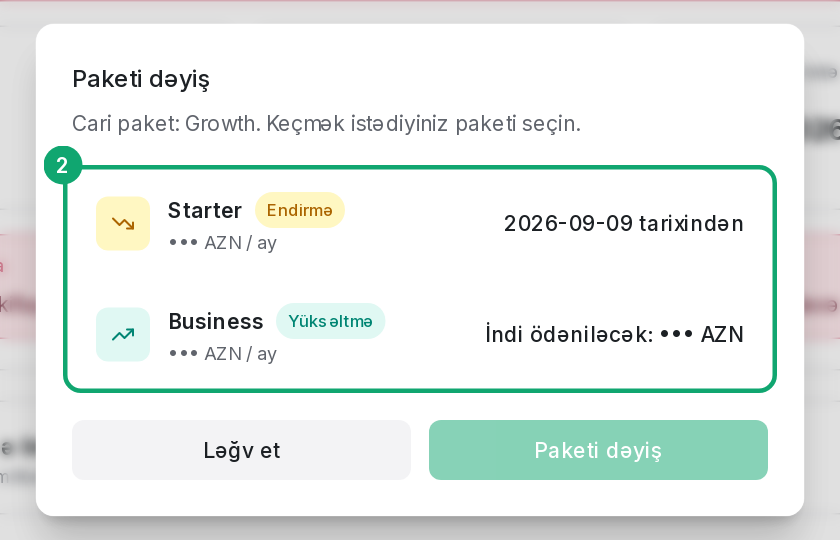
The window shows your current plan and the plans you can switch to, with their monthly prices. When you choose a plan, a list shows what you gain and what you lose.
-
3
Upgrade
When you move to a more expensive plan, the unused days of your old plan are credited and the “Due now” amount is shown. Pay with “Continue to payment”. After payment, the new plan's features are active within a few seconds.
-
4
Downgrade
A move to a cheaper plan takes effect at the end of the current period: click “Schedule the switch”. The current period continues on the old plan, and the amount already paid is not refunded.
-
5
Custom pricing and cancelling
If your company has a custom pricing agreement, you change the plan through the sales team. “Cancel subscription” doesn't work immediately: the subscription ends at the end of the paid period, and until then you can change your mind with “Undo cancellation”.