Connect a number with a QR code
Last updated: 27 September 2026 · 5 min read
The WhatsApp Business QR channel connects your number through the phone's “Linked devices” feature. No Meta approval or API setup is needed. This is not the official API: WhatsApp may ban a number for connecting this way. If that risk isn't acceptable, choose the “WhatsApp Business” (Cloud API) channel. An administrator connects the channel.
Steps
-
1
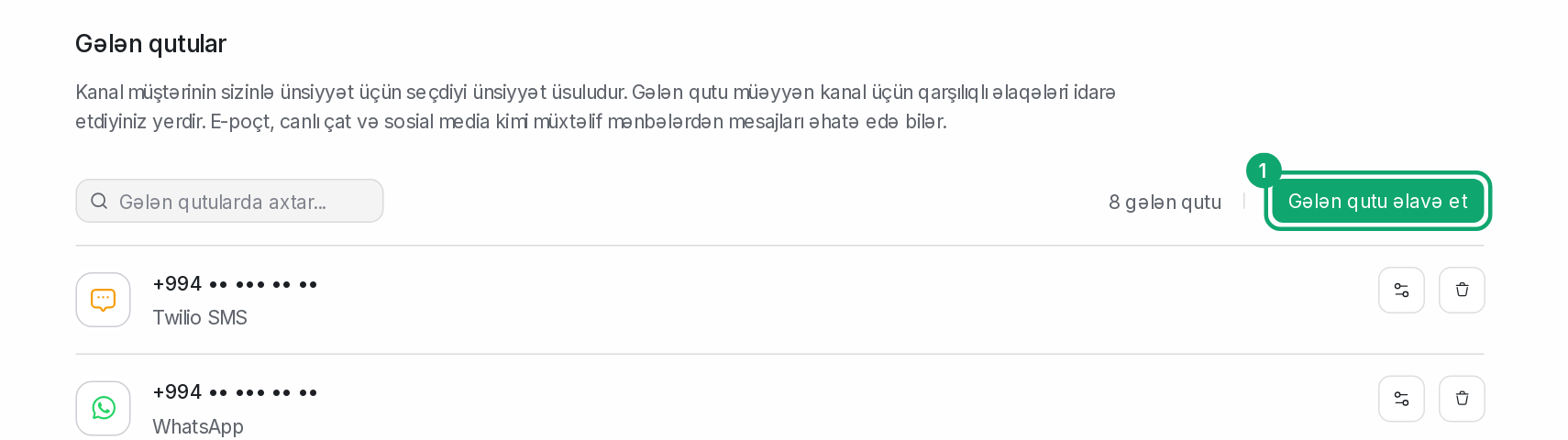
Open a new inbox
On Settings › Workspace settings › Inboxes, click “Add Inbox”.
-
2
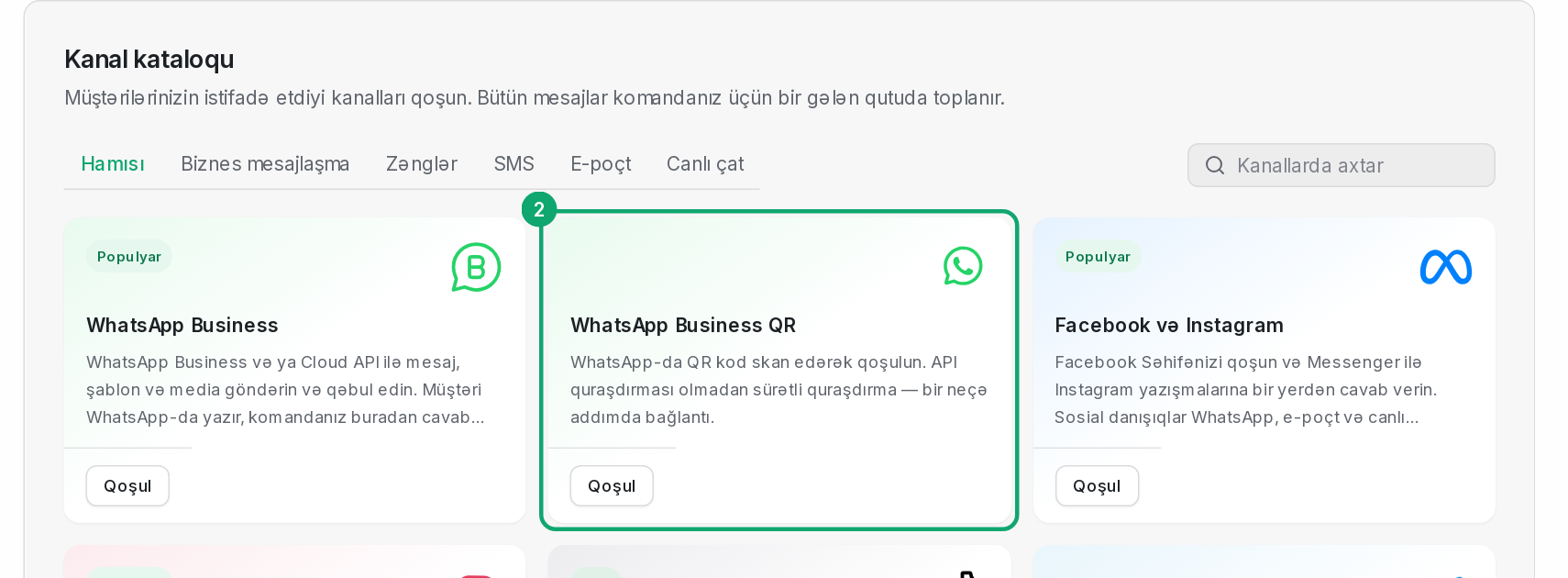
Choose the WhatsApp Business QR card
In the channel catalog, click “Connect” on the “WhatsApp Business QR” card.
-
3
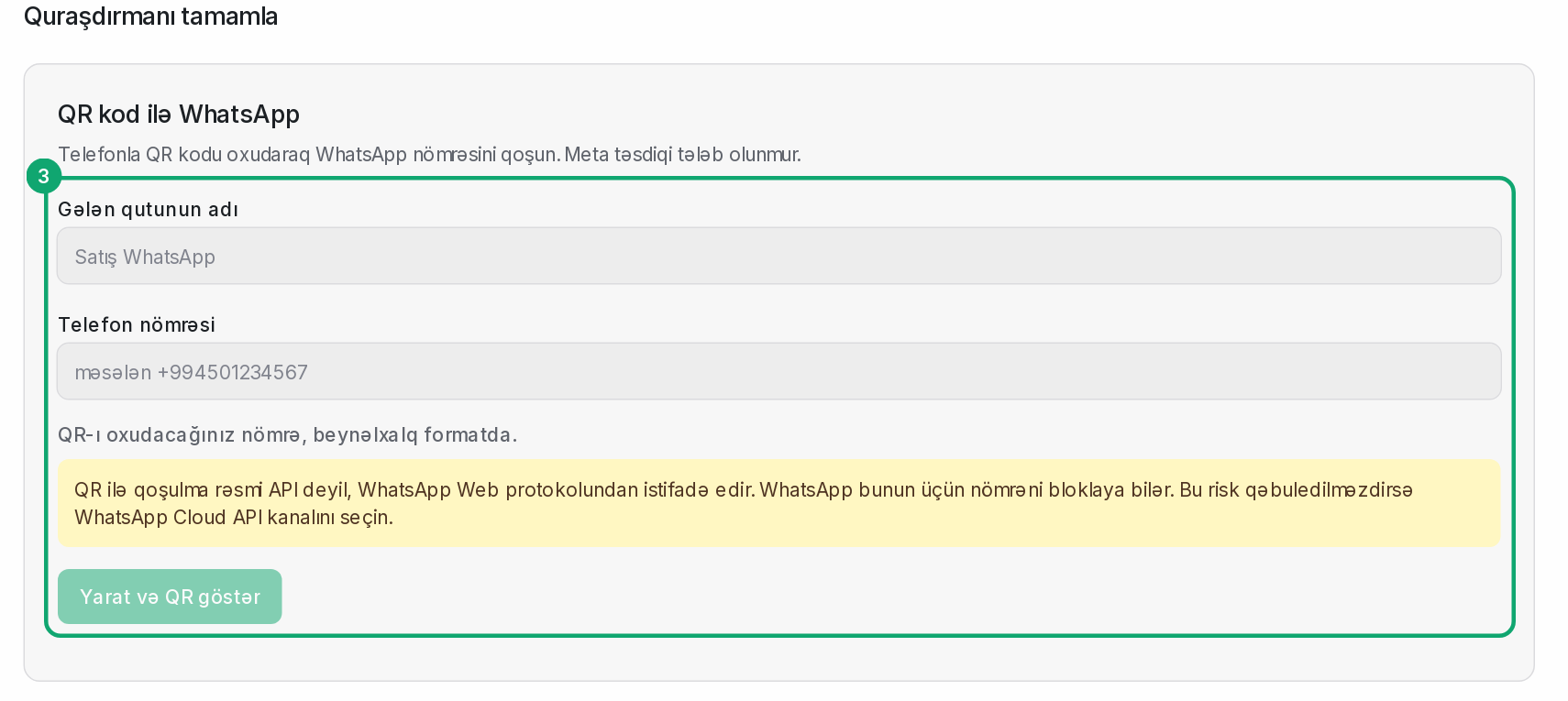
Enter the name and number
Fill in the “Inbox name” and “Phone number” fields. Write the number in international format, with the country code. Then click “Create and show QR”.
-
4
Scan the QR code with the phone
On the number's phone, open WhatsApp: Settings › Linked devices › Link a device. Scan the code on the screen. The connection is set up in a few seconds and “Connected” appears. The code changes about every minute, and the page refreshes it by itself.
-
5
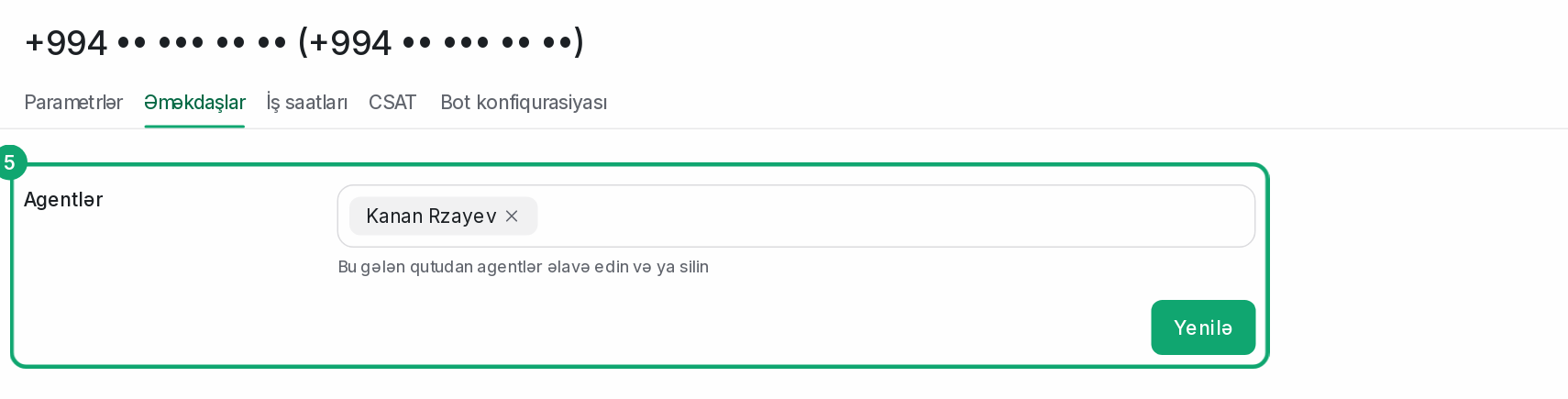
Add agents
In the channel's settings, in the “Collaborators” section, choose the agents who will see this number's conversations. After connecting, the phone also sends its recent chats: Clomni adds them with their original dates, and old conversations opened this way have “Resolved” status.